
Install the extension
Until the Chrome Web Store listing is live, install it manually:
- Download the extension folder and unzip it.
- Open
chrome://extensionsand turn on Developer mode (top right). - Click Load unpacked and select the folder that contains
manifest.json. - Click the puzzle icon in Chrome's toolbar and pin Scraper Pro.
Works in Google Chrome and other Chromium browsers such as Microsoft Edge and Brave.
Sign in with Google
- Open Google Maps. The Scraper Pro panel appears in the top-right corner.
- Click Sign in with Google and choose your account.
- The panel shows your plan — FREE with 10,000 free leads to start.
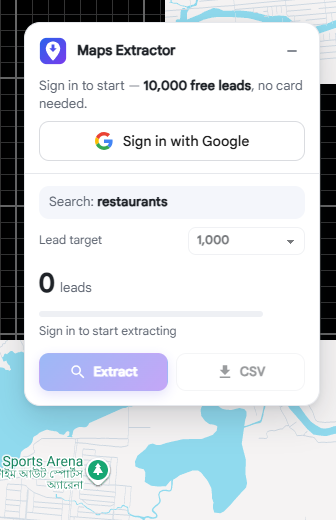
Tip · Your free leads are tied to your Google account, not the browser — reinstalling doesn't reset them.
Extract leads
- Search on Google Maps as usual, e.g. “restaurants in Banani Dhaka”.
- Pick a Lead target in the panel (100 to 5,000, or Unlimited on Pro).
- Click Extract. The progress bar shows leads / target and the area being searched.
- Click Stop at any time — everything collected so far is kept.
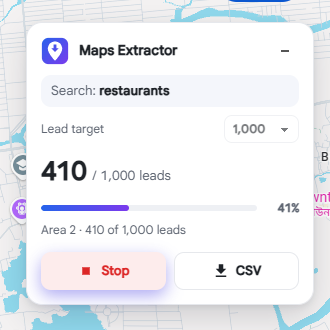
Tip · Keep the Maps tab open, but feel free to switch to other tabs or windows while it works. Minimize the panel with “–”; it becomes a small logo button with the lead count.
Lead target & big searches
One Google search returns a few hundred places at most. For bigger targets the extension searches area by area in a spiral outward from the map center, skipping duplicates, until it reaches your target or nearby areas stop adding new places.
- Center the map where you want leads before clicking Extract.
- Broad searches such as “restaurants” or “dentists in Dhaka” reach big targets; a very specific name keeps finding the same few places.
- Zoom out to space the search areas further apart and cover a larger region.
- If it finishes early, the status says “no more nearby — zoom out for more”.
Choose CSV columns
- Click the extension icon in Chrome's toolbar, then the ⚙ gear.
- Tick the columns you want, or use Contacts only (name, phone, website, address).
- Your choice applies to the next extraction and to bulk searches.
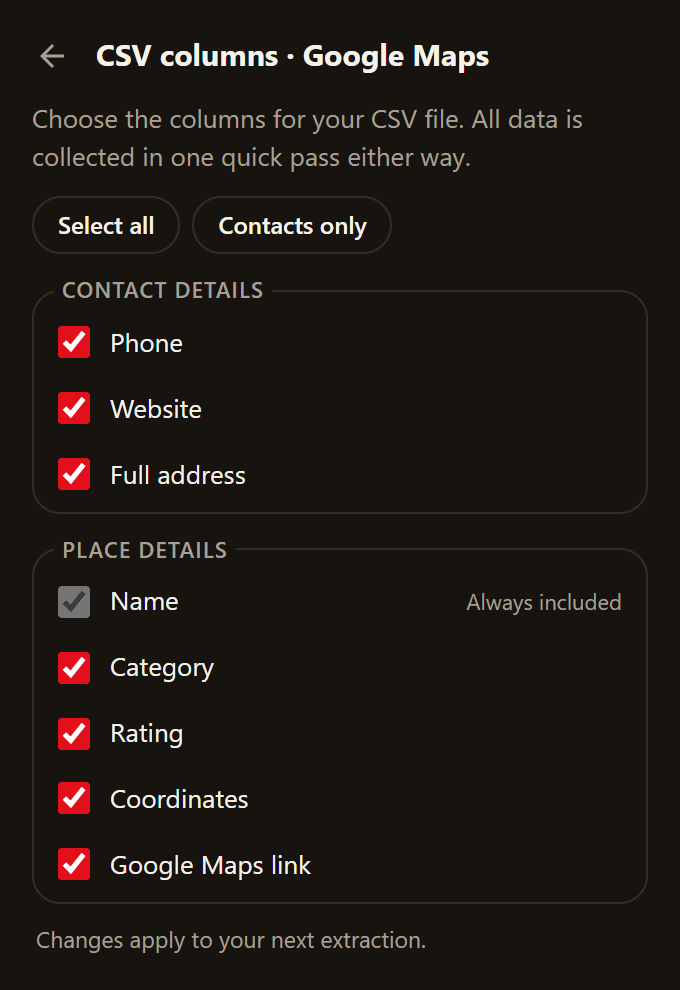
Available columns: name, phone, website, address, category, rating, latitude, longitude, Google Maps link.
Download & open in Excel
- Click CSV in the panel (or Download CSV in the popup) — during or after extraction.
- The file is saved to your Downloads folder, named after your search, e.g.
restaurants_in_banani_dhaka_2026-10-10_123442.csv. - Open it in Excel, Google Sheets or Numbers, or import it into your CRM.
Tip · Files are UTF-8, so Bangla and other scripts display correctly. If Excel ever shows odd characters, use Data → From Text/CSV and choose UTF-8.
Bulk search from Excel
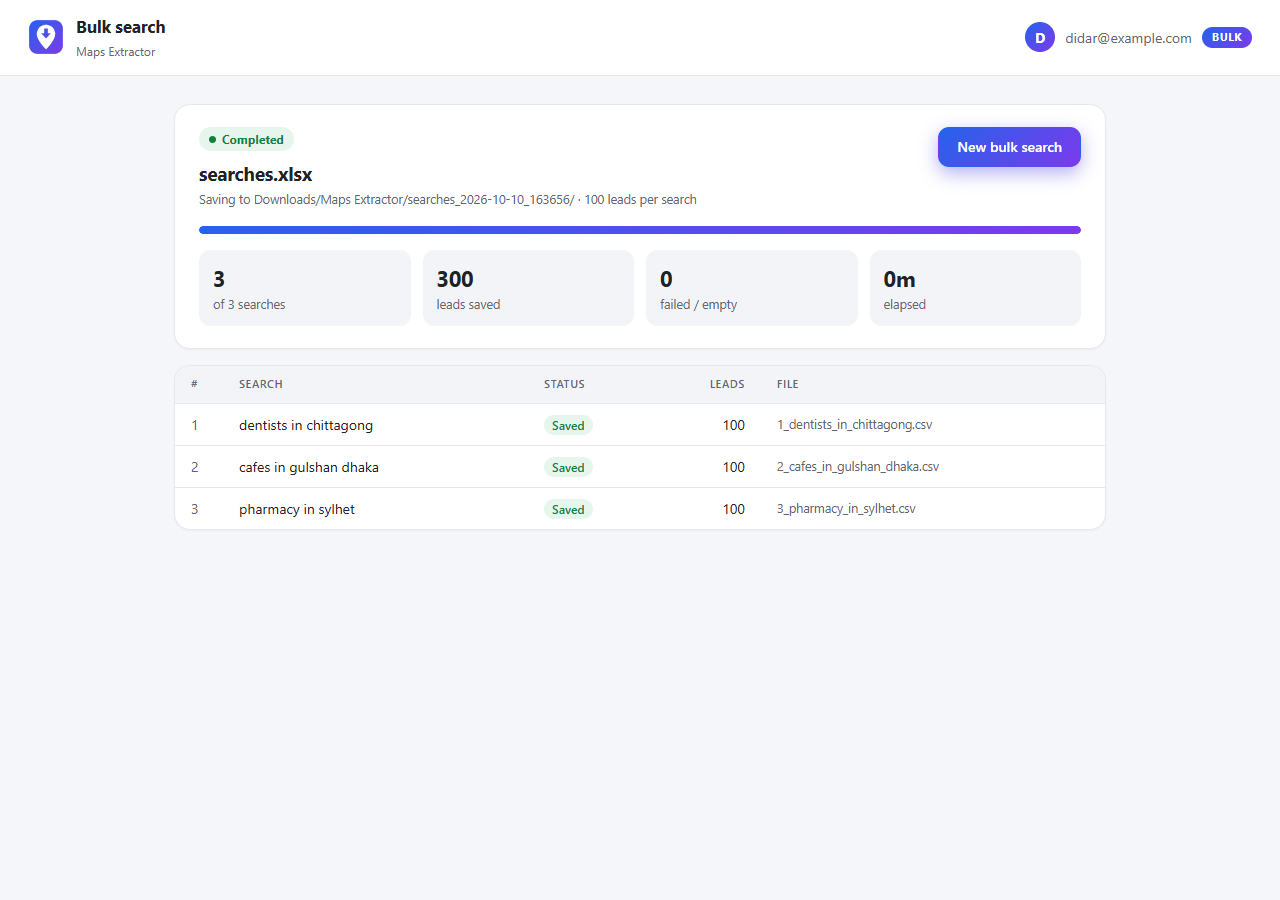
Available on the Business plan. Run hundreds of searches from one file; each search is saved as its own CSV automatically.
- Click the extension icon → Bulk search. A full page opens.
- Upload an Excel (.xlsx, .xls) or CSV file, or paste searches one per line. Put one search per row in the first column — a header row like “Search” is fine.
- Check the preview, choose Leads per search and click Start bulk search.
- Files appear in
Downloads/Scraper Pro/<file>_<date>/as01_dentists_in_chittagong.csv,02_…and so on.
| Search |
|---|
| dentists in Chittagong |
| cafes in Gulshan Dhaka |
| pharmacy in Sylhet |
| hotels in Cox's Bazar |
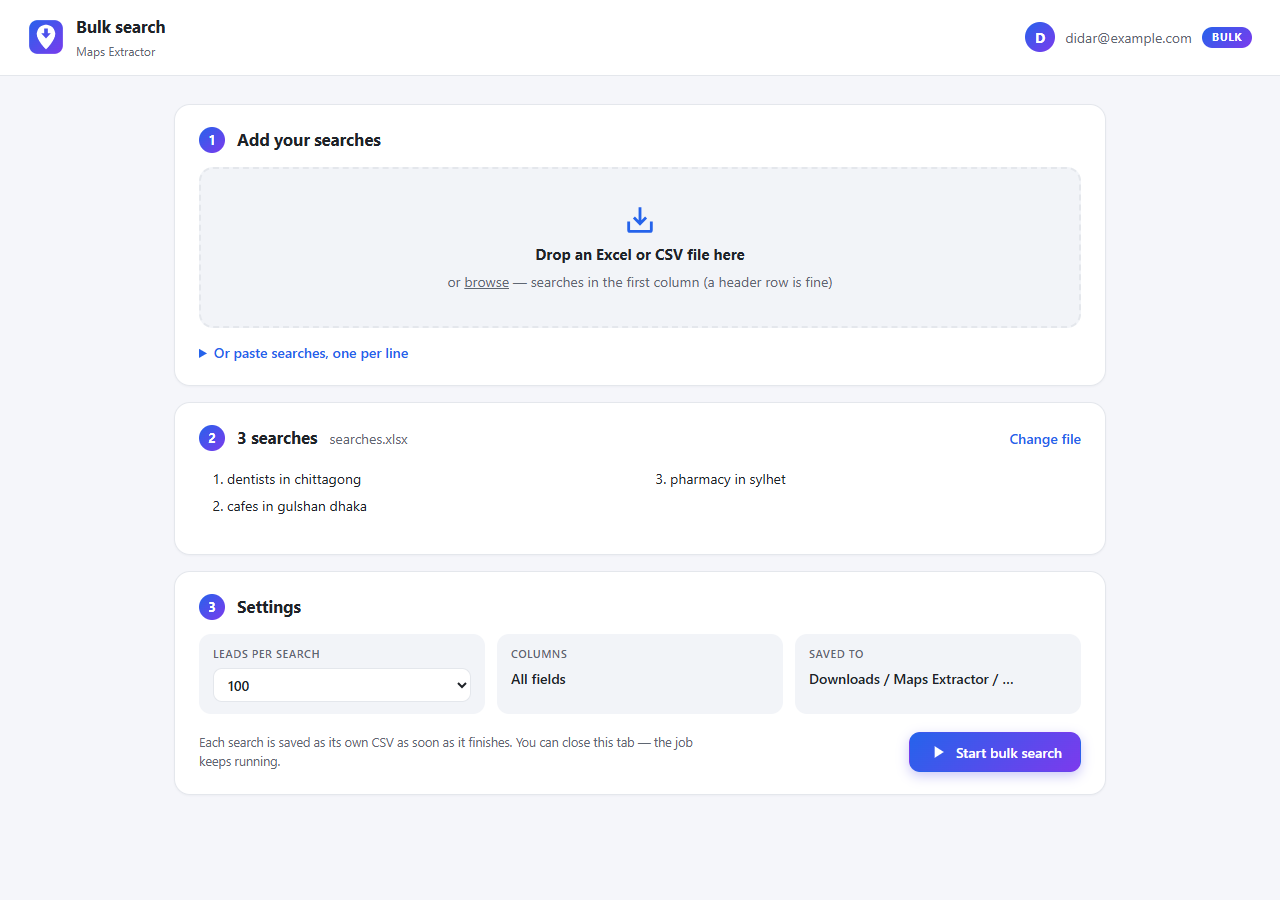
The job runs in the extension's background — no Maps tab needed. Keep working, or close the Bulk page. Pause, Resume and Cancel are on the Bulk page, and you get a desktop notification when it finishes.
Tip · If Google limits requests, the job pauses and resumes by itself a few minutes later. It stops while Chrome is closed or the computer sleeps, and continues when Chrome is running again.
Plans & billing
| Plan | Price | What you get |
|---|---|---|
| Free | $0 forever | Try it on real searches. No card needed. |
| Pro | $10 per month | For freelancers and sales reps working one search at a time. |
| Business | $50 per month | For teams running hundreds of searches at once. |
| Agency | $99 planned, coming soon | Hands-off lead generation across every source. |
- Upgrade: click Upgrade in the panel or popup. Checkout opens in a new tab; your plan unlocks automatically within seconds of paying.
- Pro → Bulk: your existing subscription is switched and you only pay the difference for the rest of the month.
- Manage or cancel: popup → Manage subscription. You keep your plan until the end of the paid period.
Troubleshooting
- “Refresh the Google Maps tab”
- The tab was open before the extension was installed or updated. Refresh it once.
- The panel isn't visible
- It may be minimized — look for the logo button in the top-right corner of the map and click it.
- “Google paused requests”
- Google is limiting requests from your connection. Wait a few minutes; bulk jobs resume automatically.
- Fewer leads than the target
- Nearby areas ran out of new places. Zoom out, center the map elsewhere, or use a broader search.
- “No searches found” in bulk
- Put one search per row in the first column of the first sheet, and save as .xlsx, .xls or .csv.
- Social: “Refresh the … tab”
- The LinkedIn, Facebook, Instagram or TikTok tab was open before the extension was installed or updated. Refresh it once.
- Social: no results found
- Make sure you're on a search results page (or an Instagram hashtag, keyword or location page). If it still finds nothing, the site may have changed its page: click “Copy debug report” in the panel and email it to support — it contains the page structure only, no names or text.
Still stuck? Email didar131299@gmail.com.
Social export (Beta)
Besides Google Maps, the extension exports search results from LinkedIn, Facebook, Instagram and TikTok. It's free on every plan and needs no extension sign-in — just be logged in to the site itself.
tiktok_videos_skincare_routine_2026-10-11_181502.csv.Tip · These sites limit automated activity and may restrict accounts they flag. The extension reads only what they show you and paces itself, but keep runs modest — a few hundred results at a time.