
Who it's for
- Agencies running lead generation and outreach for clients
- Sales teams that want new leads every week without lifting a finger
- Anyone who emails the leads they collect
Key facts
- Price
- $99/month planned · coming soon (join the waitlist)
- Everything in Business
- Bulk search on seven sources, merged files, queue, 1,000-search dashboard runs
- Scheduled bulk searches
- Every day, week or month at a set time; up to 20 schedules
- Only new leads
- Each run can keep only businesses earlier runs didn't find
- Email outreach
- Contacts, Campaigns, Templates, Email accounts, do-not-contact list
- Campaigns
- Follow-ups in the same thread, A/B versions, schedule, daily limits, reply and bounce detection
- Mailboxes
- Gmail, Google Workspace, Microsoft 365, Outlook, Zoho, Yahoo or any SMTP/IMAP mailbox
- Support
- Priority email support
Everything in Agency
Scheduled bulk searches
Save a bulk search as a schedule: every day, every week on a chosen day, or every month on a chosen date, at your time. It runs in Chrome while it's open; a missed run starts when Chrome opens.
Only new leads
The first run saves everything; later runs leave out what earlier runs found, so every file is new businesses only. Up to 50,000 results remembered per schedule.
Contacts
Contact groups from your lead groups (one click, leads with an email), from CSV or Excel, or pasted emails. Search, export and a do-not-contact list that every campaign respects.
Email accounts
Send from your own mailboxes over SMTP, with IMAP for replies. Daily limits, a gap between emails, a signature, SPF, DKIM, DMARC and MX checks, and test emails.
Templates
Write emails once in a visual editor or HTML, with merge tags like {{company}} and {{first_name|there}} (with a fallback), and reuse them in any campaign.
Campaigns with follow-ups
A sequence of emails with waits between them, follow-ups in the same thread, A/B versions, several sending mailboxes, a schedule, and new contacts per day.
Replies and results
Replies stop the sequence for that contact; bounces and unsubscribes are handled for you. Results per email and per version, and every contact's progress.
Everything in Business
Bulk search on seven sources, merged files without duplicates, the queue, and 1,000-search runs in the dashboard.
Guide 1 of 11
Schedule a bulk search
On the extension's Bulk search page, add your searches and settings as usual, then tick Run this on a schedule.
- 1
Turn on the schedule
Tick Run this on a schedule under Repeat. Files save automatically to Downloads/Scraper Pro/Schedules/<name>/<date>/.
- 2
Choose when
Every day, every week (pick the day) or every month (pick the date, 1–28), at a time of day in your computer's time zone.
- 3
Choose what to keep
Only new results since the last run (on by default), and, for Google Maps, also send each run to app.scraperpro.pro as a lead group.
- 4
Save schedule
Saving doesn't run it now; it runs at the time you set. The line above the button shows the first run.
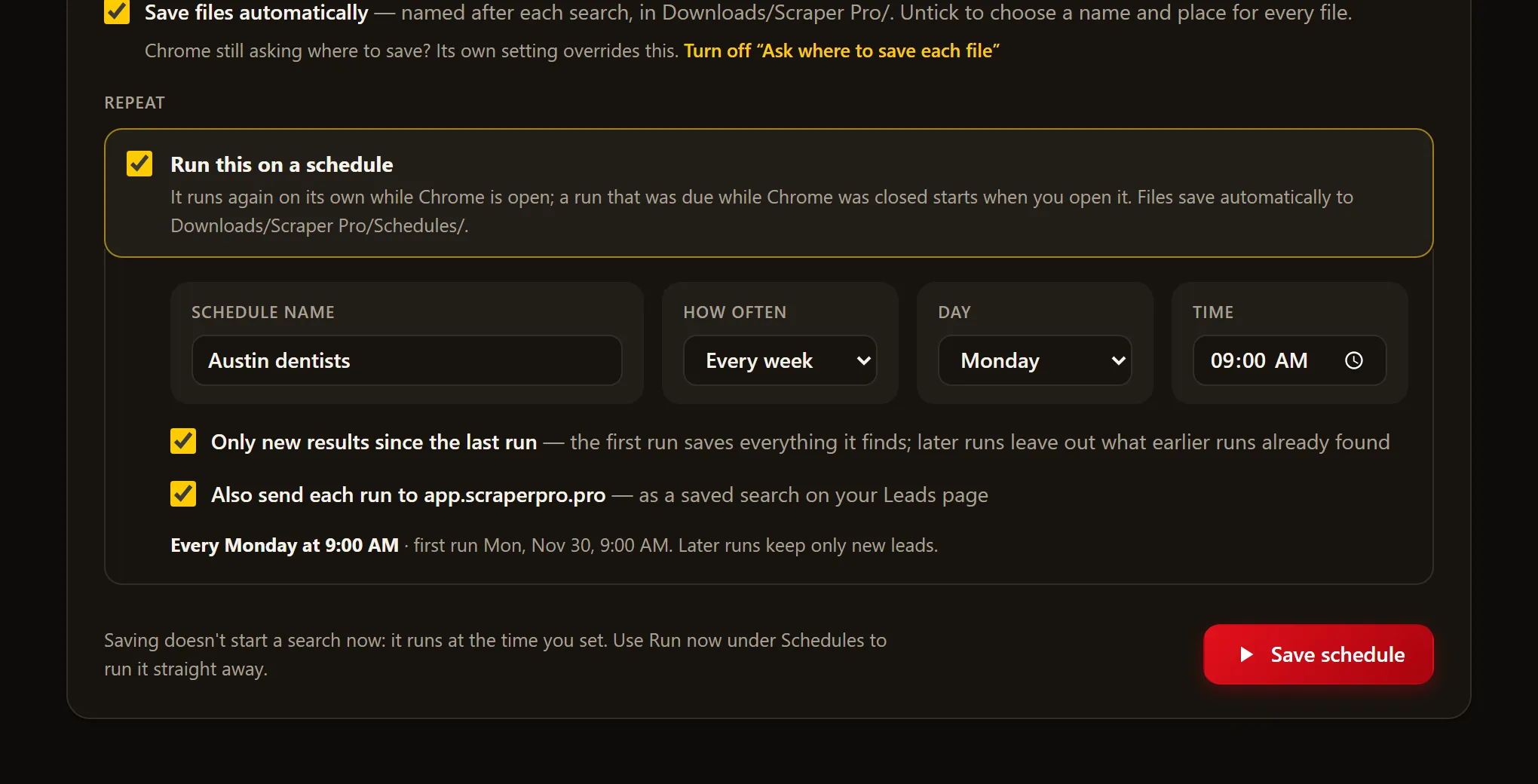
- 1Run this on a scheduleTurns the bulk search into a schedule.
- 2Schedule nameNames the schedule and its folder.
- 3How oftenEvery day, every week or every month.
- 4DayThe weekday (weekly) or date (monthly).
- 5TimeIn your computer's time zone, daylight saving included.
- 6Only new resultsLater runs leave out what earlier runs already found.
- 7Send to app.scraperpro.proGoogle Maps runs also become a lead group in the dashboard.
- 8First runWhen it will run first.
- 9Save scheduleSaves it; it runs at the time you set.
Tip: Schedules run in Chrome while it's open, one at a time. A run that comes due during another bulk search starts after it; a run due while Chrome was closed starts when you open it.
Guide 2 of 11
Manage your schedules
Every schedule is listed under Schedules on the Bulk search page, with its next run and how the last one went.
- 1
Check its status
Scheduled (with the next run), Waiting (due, after the bulk search in progress), Running, or Paused.
- 2
Run it now or change it
Run now runs it straight away and keeps the regular time. Edit opens it in the form to change searches, settings or timing.
- 3
Pause or delete
Pause stops future runs until you resume. Delete removes the schedule; files from earlier runs stay in Downloads.
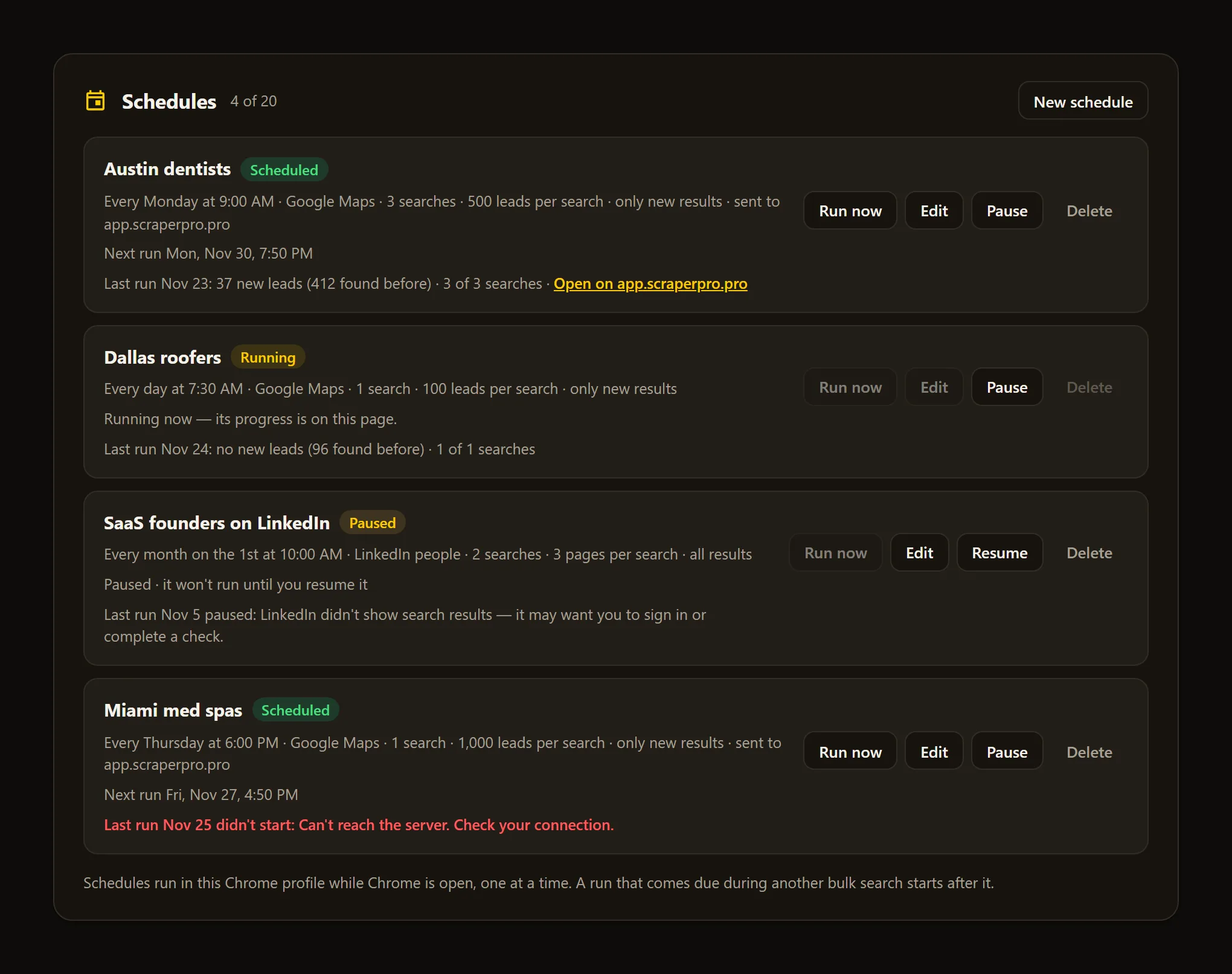
- 1New scheduleStarts a new schedule in the form.
- 2StatusScheduled, Waiting, Running or Paused.
- 3Last runNew leads found (and how many were found before), and a link to its lead group.
- 4Run nowRuns it now without changing its regular time.
- 5EditChange its searches, settings or timing.
- 6PauseNo runs until you resume it.
Guide 3 of 11
Turn leads into contacts
Campaigns email contact groups. Make one from a lead group in one click, or import a list.
- 1
Open a lead group
Leads → Lead groups, then the group. Filter it if you like: Has email, Has website, minimum rating.
- 2
Save to contact group
Click Save to contact group, choose a new or existing group. Only leads with an email are added, with their company, city and website for personalization.
- 3
Check the group
Contacts lists every group; open one to search, export or remove contacts. People on the do-not-contact list are never emailed.
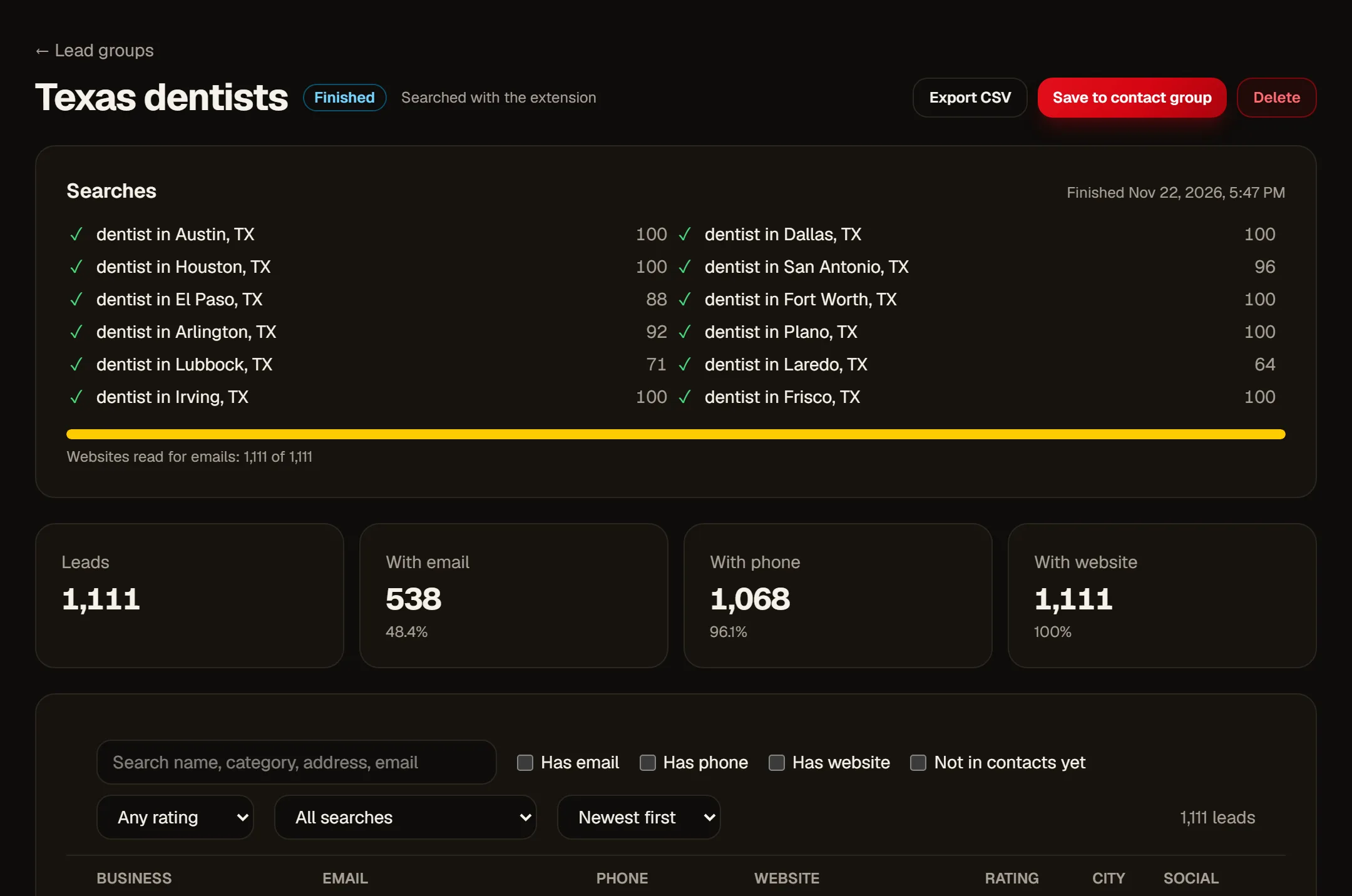
- 1Save to contact groupLeads with an email go into a contact group for a campaign.
- 2FiltersSave only what you want, e.g. rating 4+.
Guide 4 of 11
Manage a contact group
Contacts → a group shows everyone in it, ready for a campaign.
- 1
Find people
Search by email, name or company.
- 2
Export or tidy up
Export the group as CSV, or select contacts and remove them from the group.
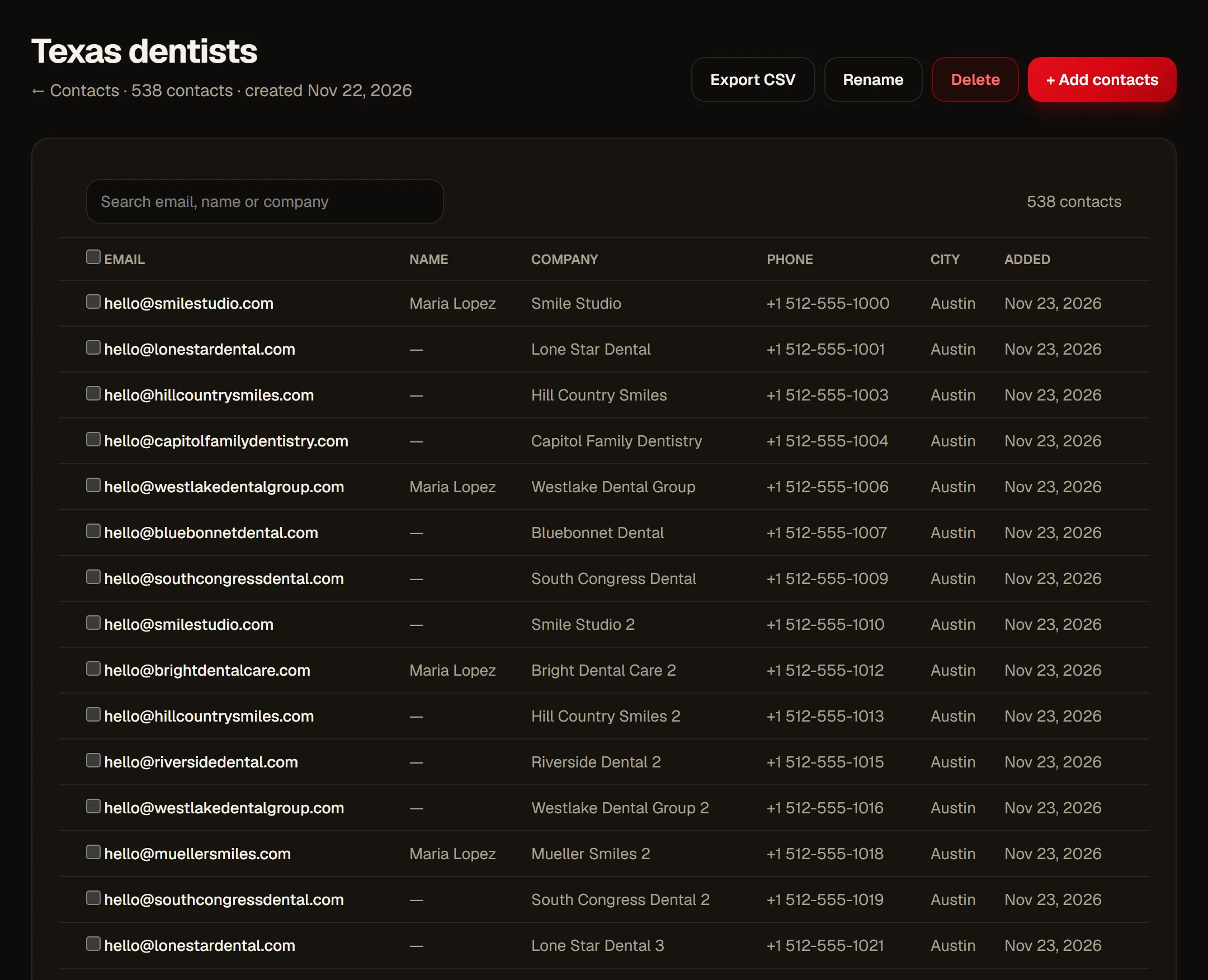
- 1SearchEmail, name or company.
- 2ExportThe group as a CSV.
- 3ContactsEmail, name, company and the details used in merge tags.
Guide 5 of 11
Connect your email accounts
Campaigns send from your own mailboxes, slowly, like a person writing them. Email accounts → Add email account.
- 1
Choose your provider
Google (Gmail, Workspace), Microsoft (365, Outlook), Zoho, Yahoo or any other. Settings are filled in for the big providers.
- 2
Sign in with an app password
Create an app password in your email account's security settings and paste it. Scraper Pro tests sending (SMTP) and reading replies (IMAP) before saving; passwords are encrypted.
- 3
Set the pace
Daily limit, the gap between emails, the From name, reply-to and signature. Check SPF, DKIM, DMARC and MX, and send yourself a test email.
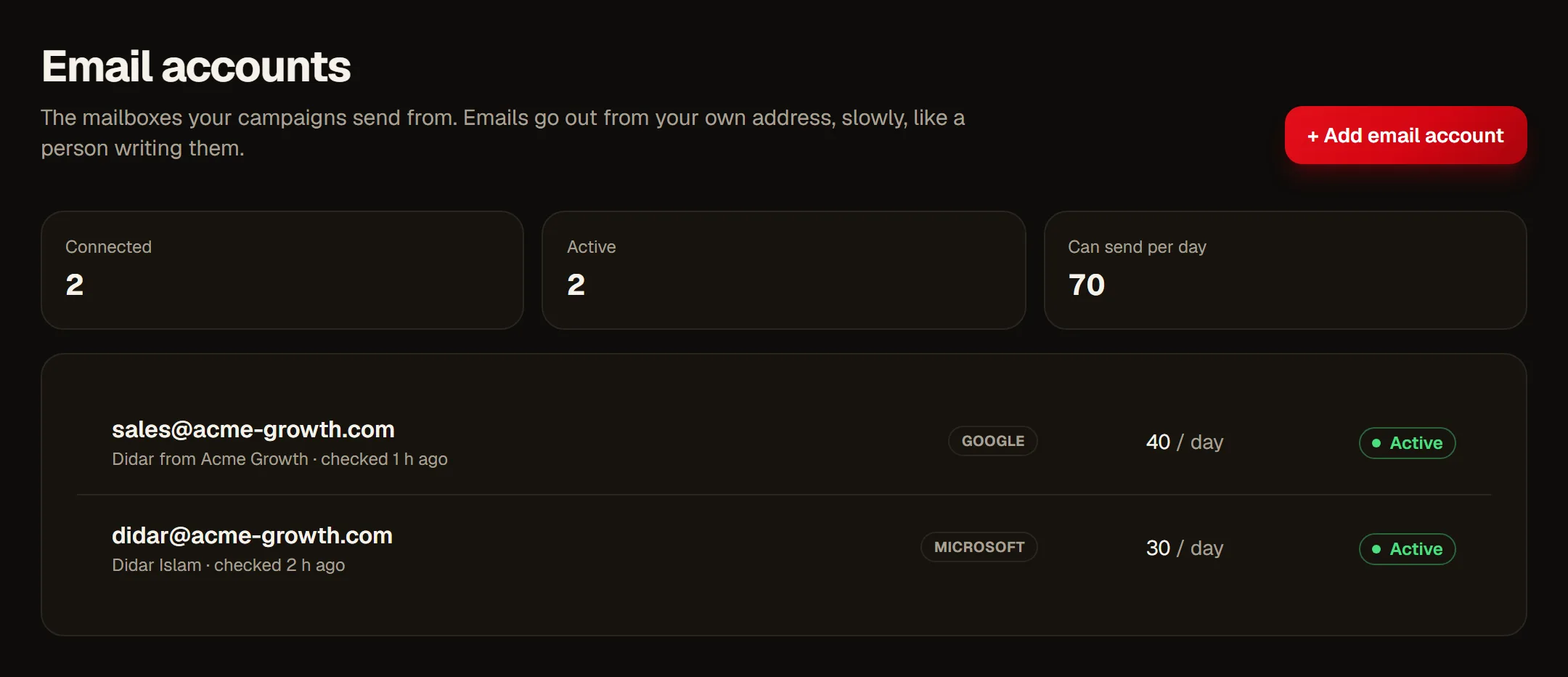
- 1Add email accountConnects a mailbox over SMTP and IMAP.
- 2Can send per dayAll active mailboxes' daily limits together.
- 3Daily limitPer mailbox: start low (20–40) and raise it slowly.
- 4StatusActive, paused, or a login problem to fix.
Guide 6 of 11
Write templates
Templates are emails you write once and load into any campaign step.
- 1
New template
Start from a blank email or a starter, in the visual editor or as HTML code.
- 2
Personalize
Insert merge tags: {{first_name}}, {{company}}, {{city}}, {{website}} and more, with a fallback for empty values: {{first_name|there}}.
- 3
Preview and test
Preview with a real contact's details and send a test email before using it.
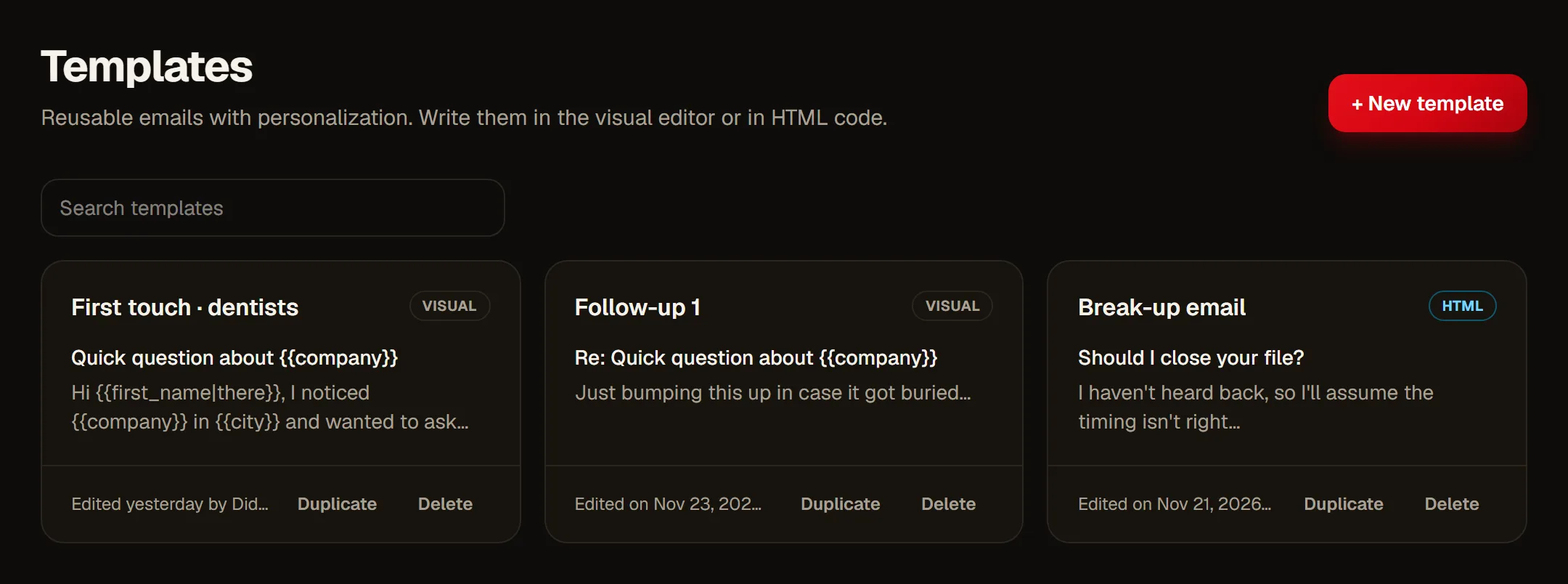
- 1New templateA blank email or a starter.
- 2A templateIts subject and the start of the email; open it to edit.
Guide 7 of 11
Create a campaign
Campaigns → New campaign. A campaign sends a sequence of emails to contact groups, from your mailboxes, on a schedule.
- 1
Name it
Click New campaign, name it and choose its time zone. It starts as a draft.
- 2
Build it
Write the sequence, choose recipients and senders, set the schedule and options (below), then Launch. The launch check lists anything missing.
- 3
Run it
Pause and resume at any time, add contacts who joined its groups since launch, or duplicate it for the next client.
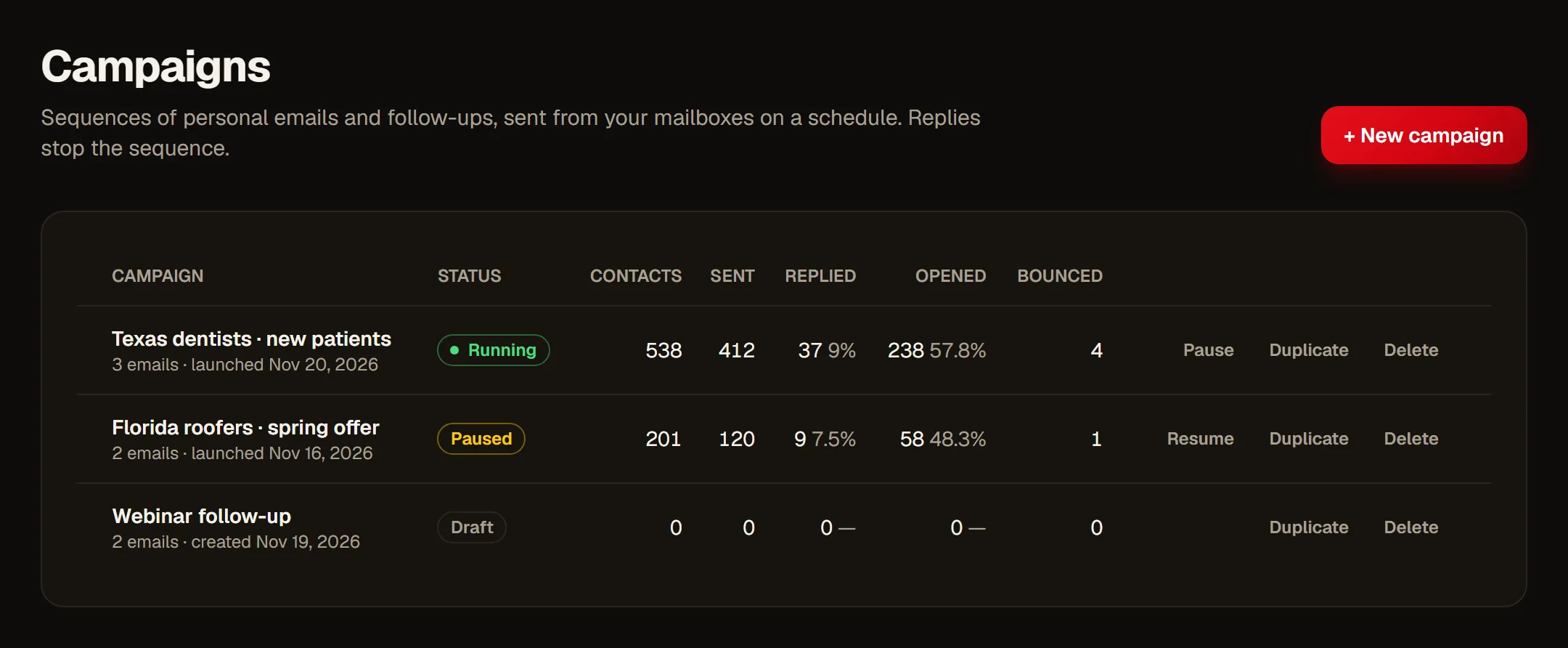
- 1New campaignStarts a draft.
- 2StatusDraft, Running, Paused or Completed.
- 3ResultsContacts, sent, replied, opened and bounced, at a glance.
- 4PauseStops sending until you resume.
Guide 8 of 11
Write the sequence
The Sequence tab holds the emails. Email 1 goes out first; each follow-up waits the days you set and replies in the same thread.
- 1
Write Email 1
Its subject, preview text and email, in the visual editor or HTML. Load from template fills it from a template.
- 2
Test two versions
+ A/B version adds Version B; contacts are split evenly and Results shows which gets more replies.
- 3
Add follow-ups
+ Add follow-up adds Email 2, 3… Set Wait (days) before each. Follow-ups reply in the same thread unless you give them a subject.
- 4
Personalize
Insert into email adds merge tags like First name, Company, City and Website.
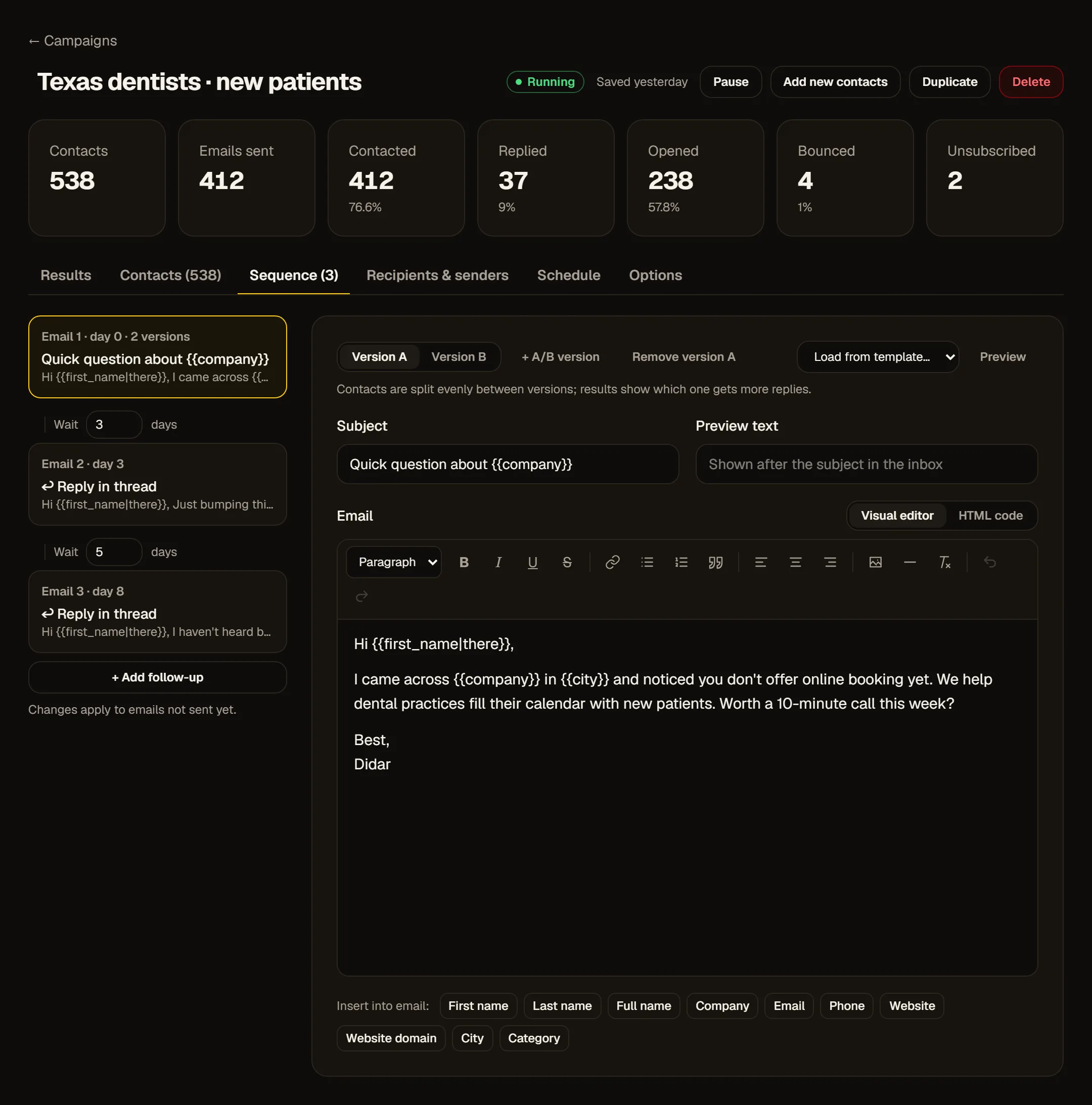
- 1EmailsEach email in the sequence; click one to edit it.
- 2WaitDays before this follow-up.
- 3+ Add follow-upAnother email in the sequence.
- 4VersionsA and B; results per version.
- 5+ A/B versionAdds a version to test.
- 6Load from templateFills the email from a template.
- 7SubjectLeave a follow-up's subject empty to reply in the same thread.
- 8Visual editor · HTML codeWrite it either way.
- 9Insert into emailMerge tags for each contact's details.
Guide 9 of 11
Choose recipients and senders
The Recipients & senders tab says who gets the campaign and which mailboxes send it.
- 1
Tick contact groups
Everyone in them is added at launch. Add new contacts later includes people added to the groups since.
- 2
Tick mailboxes
Contacts are split evenly between the chosen mailboxes, and each contact gets every email from the same one. Daily limits are shared with other campaigns.
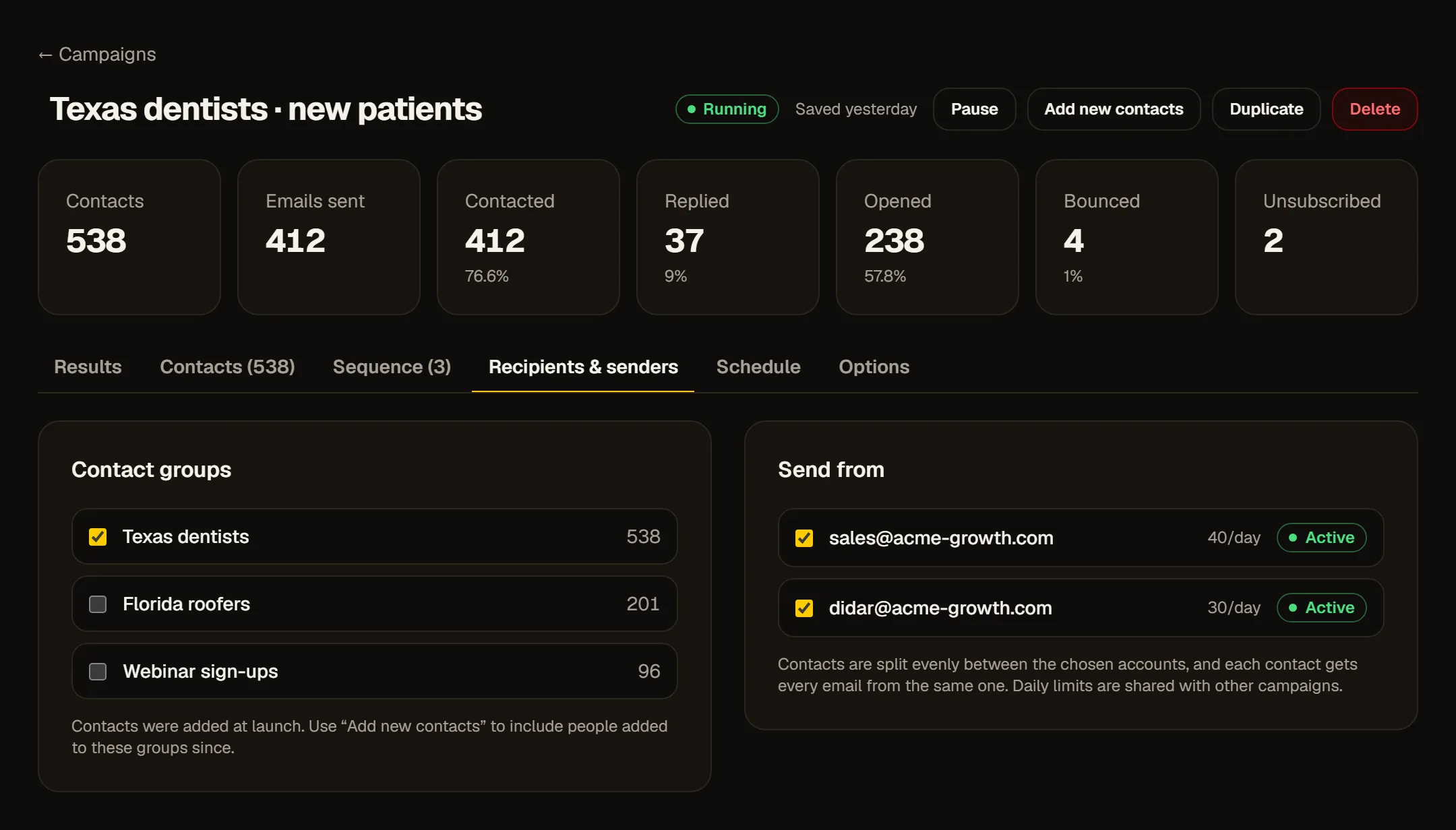
- 1Contact groupsWho the campaign emails.
- 2Send fromWhich of your mailboxes send it.
Guide 10 of 11
Set the sending schedule
The Schedule tab decides when emails go out, in your recipients' time zone.
- 1
Sending days and hours
For example Monday to Friday, 9 AM to 5 PM. Business emails get the most replies on weekday mornings.
- 2
Time zone and start
Use your recipients' time zone. Start on is optional: empty starts as soon as it's launched.
- 3
New contacts per day
How many new people get Email 1 each day; follow-ups come on top. 0 leaves only the mailboxes' daily limits.
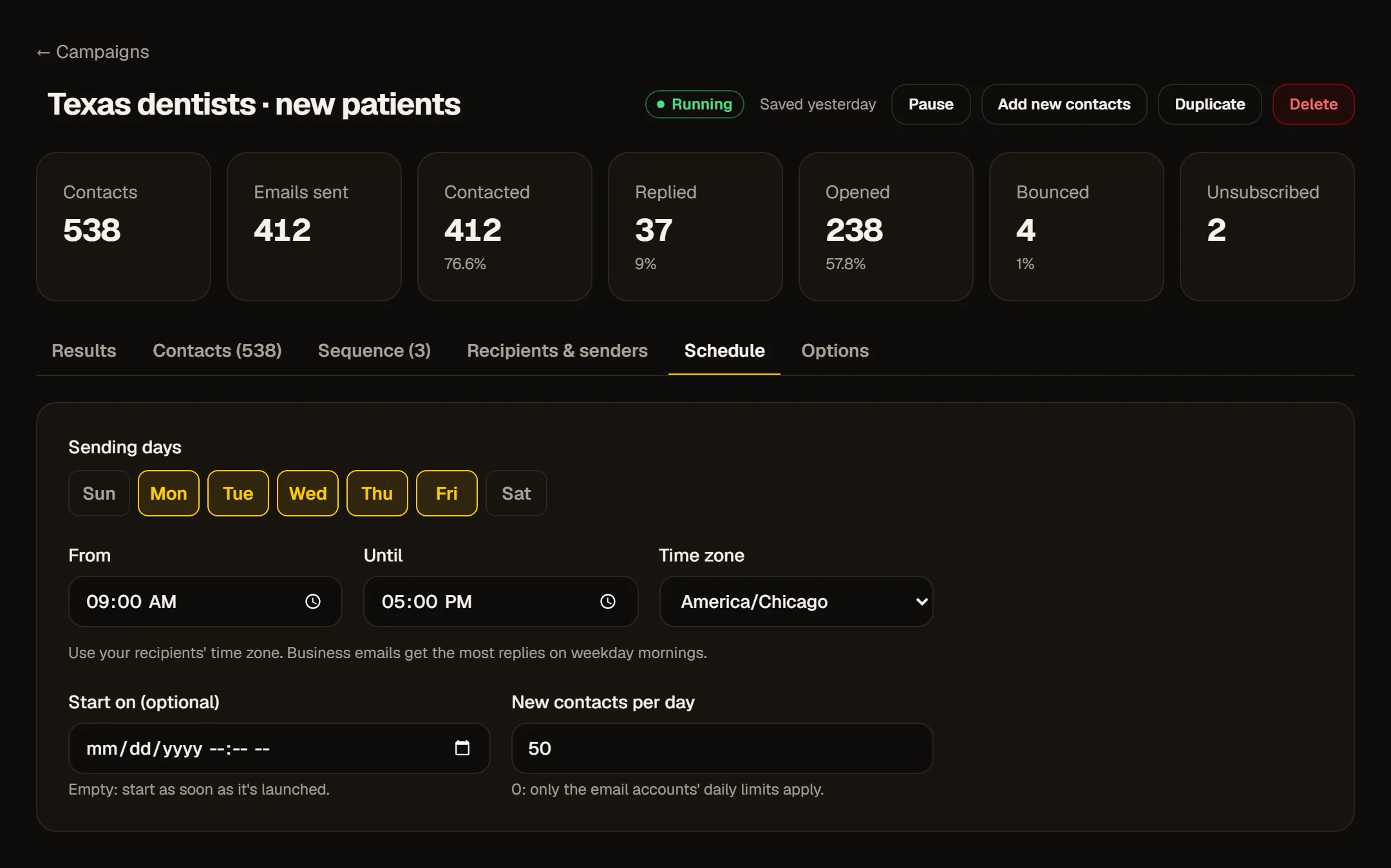
- 1Sending daysEmails only go out on these days.
- 2From · UntilThe sending window each day.
- 3Time zoneYour recipients' time zone.
- 4New contacts per dayPace of new people starting the sequence.
Tip: The Options tab sets the rest: stop the sequence when a contact replies, open and click tracking, and the unsubscribe link and its text.
Guide 11 of 11
Read the results
A launched campaign opens on Results: how far it's got and how each email performs.
- 1
Progress
Contacts finished, not contacted yet, waiting for a follow-up, and stopped.
- 2
By email
Sent, replied, opened, clicked and bounced for each email and version, so you can keep the better one.
- 3
People
The Contacts tab shows every contact's progress: next email, mailbox, opened, replied or bounced; stop one contact if you need to.
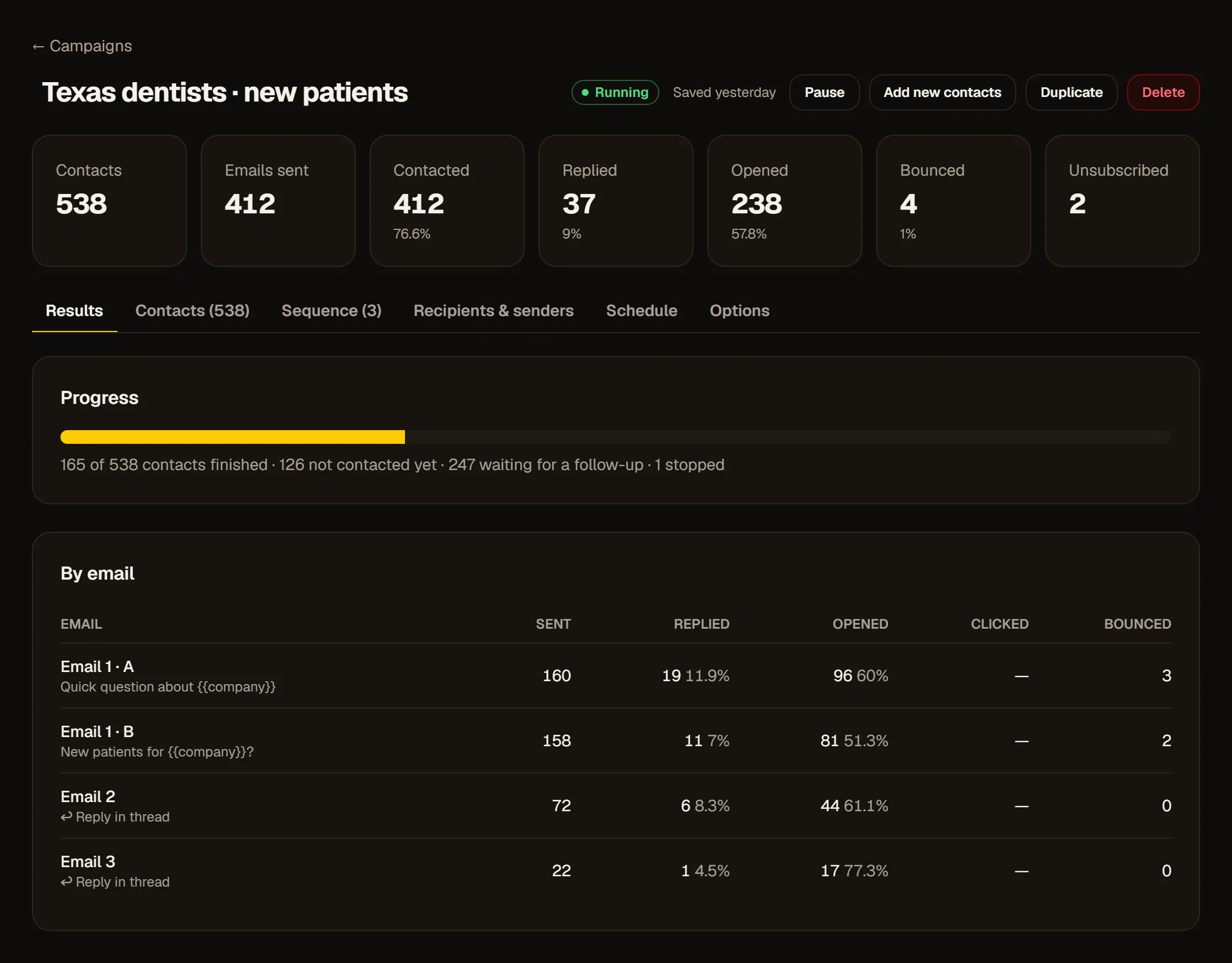
- 1RunningPause, add new contacts, duplicate or delete from here.
- 2TotalsContacts, emails sent, contacted, replied, opened, bounced, unsubscribed.
- 3ContactsEvery contact's progress in the campaign.
- 4ProgressFinished, not contacted yet, waiting for a follow-up.
- 5By emailEach email and version's results.
Tip: Replies and bounces are detected by reading your mailboxes (IMAP): a reply stops that contact's sequence; a bounce adds the address to the do-not-contact list.
Agency plan FAQ
How much will Scraper Pro Agency cost?
The planned price is $99 a month. Agency is coming soon: join the waitlist and we'll email you when it's available.
What's in Agency that isn't in Business?
Scheduled bulk searches (with only-new results), and email outreach in the dashboard: contact groups, email accounts, templates, campaigns with follow-ups, and reply and bounce detection. Plus priority support.
Do scheduled searches run when my computer is off?
They run in Chrome on your computer. A run that was due while Chrome was closed starts when you open it, once, however many were missed.
Which mailboxes can I send from?
Gmail and Google Workspace, Microsoft 365 and Outlook, Zoho, Yahoo, or any mailbox with SMTP and IMAP. You sign in with an app password; it's encrypted and both logins are tested before saving.
How many emails can I send?
As many as your mailboxes allow: you set each mailbox's daily limit and the gap between emails. Start low (20–40 a day per mailbox) and raise it slowly to protect your sender reputation.
Do follow-ups stop when someone replies?
Yes, by default: a reply stops that contact's sequence. Bounces are added to the do-not-contact list, and every email has an unsubscribe link (one click, with the List-Unsubscribe header).
Is cold email allowed?
B2B cold email is legal in the US under CAN-SPAM when you identify yourself, include a postal address, honor unsubscribes and don't mislead. Check the rules where your recipients are (GDPR in the EU, CASL in Canada).