
Who it's for
- Lead-generation agencies building lists for many clients
- Sales teams covering many cities, states or niches
- Anyone with a spreadsheet of searches to run
Key facts
- Price
- $50/month launch price (regular $149); yearly billing charges 10 months for 12
- Everything in Pro
- Unlimited leads from every source, whole-city search, CSV columns
- Bulk search sources
- Google Maps, Google Search, LinkedIn, Facebook, Instagram, TikTok, YouTube
- Searches per bulk job
- Google Maps 1,000 · Google Search 200 · each social network 100
- Leads per Google Maps search
- 100, 500, 1,000, 2,500, 5,000 or all available
- Files
- A CSV per search, one merged CSV (duplicates removed), or both
- Queue
- Up to 200 batches, one after another, each into its own file
- Dashboard lead searches
- Up to 1,000 searches per run
Everything in Business
Bulk search on seven sources
One list of searches, run on Google Maps in the background, or on Google Search, LinkedIn, Facebook, Instagram, TikTok or YouTube in a Scraper Pro window, exactly like clicking Extract yourself.
Type, paste or upload
Type searches separated by commas or new lines, or upload Excel (.xlsx) or CSV with one search per row. Duplicates and blank rows are removed.
Merged CSV without duplicates
Every search merged into one file, with a search column saying which search found each lead, the columns you choose, Required columns, and duplicates removed automatically.
A queue of batches
Line up batches (one per state, say) and click Start queue. They run one after another, each into its own folder and file named after it.
Runs on its own
Files save automatically to Downloads/Scraper Pro/. Skip a search, pause, resume or cancel. If Chrome closes, it carries on from the same search when Chrome opens again.
Safe pacing
Social networks get pauses between searches (LinkedIn 20–40 seconds); if Google limits requests, Google Maps waits 5 minutes and resumes on its own.
1,000-search runs in the dashboard
Run a whole list from app.scraperpro.pro; the leads land in a lead group you can filter and export, and Search history shows every search you've run.
Everything in Pro
Unlimited leads from every source, whole-city search, CSV columns and Required, emails and social profiles from websites.
Guide 1 of 8
Add your searches
Open the Bulk search page: in the extension's popup click Bulk search, or the Bulk search link under the Google Maps panel.
- 1
Choose how to add them
Type searches: quickest for a few. Upload Excel or CSV: best for long lists. Download a template from the upload tab if you need one.
- 2
Type or paste the list
Separate searches with commas or new lines. A state or ZIP after a comma stays with its search (“cafes in Seattle, WA”); for any other comma, wrap the search in quotes.
- 3
Use these searches
Click Use these searches (or press Ctrl + Enter). The list appears below for a final check. Add another batch puts this list in the queue and clears the form for the next one.
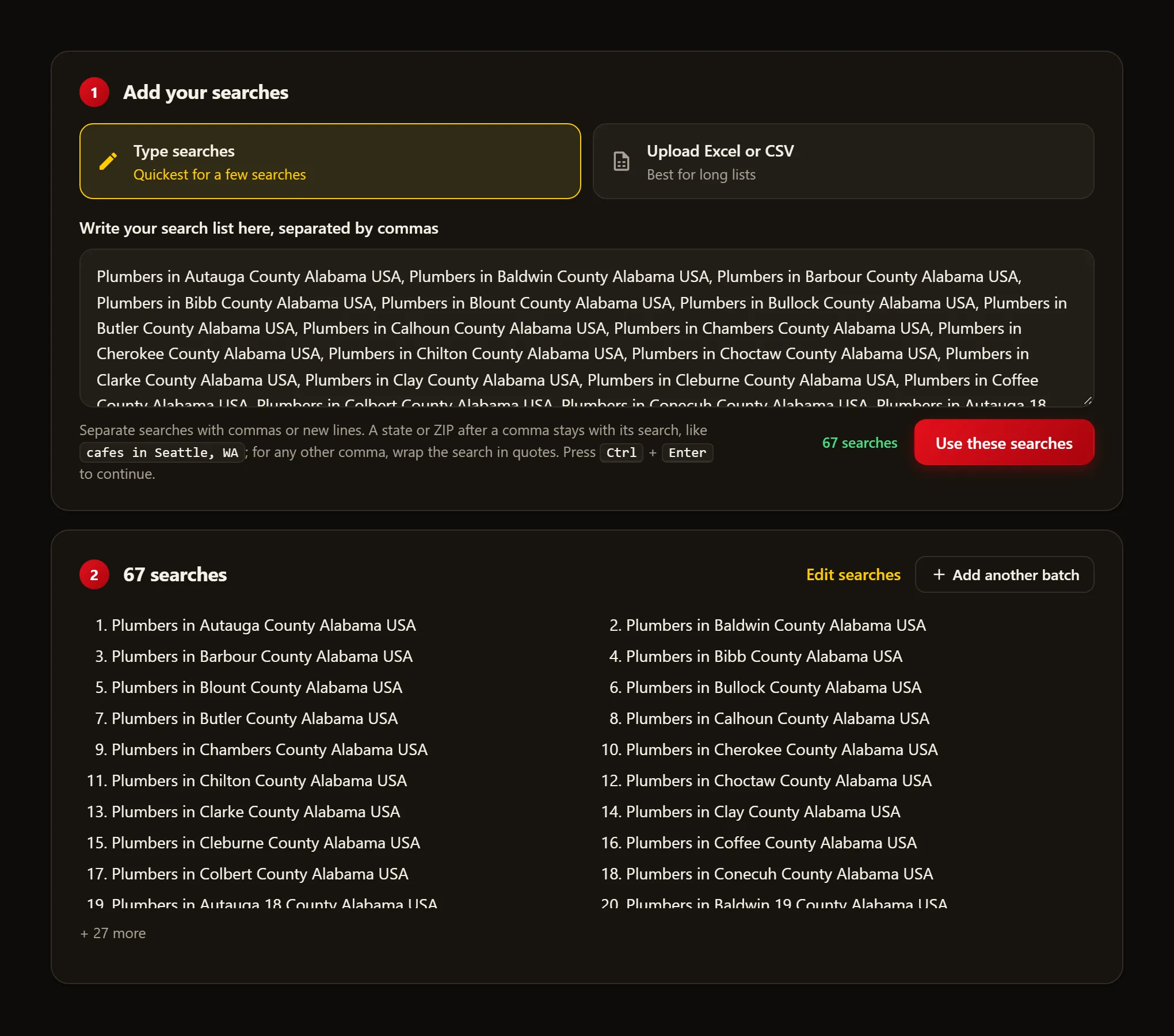
- 1Type searchesWrite or paste the list here.
- 2Upload Excel or CSVOne search per row in the first column (or a column named search, query or keyword).
- 3Your search listCommas or new lines between searches. Duplicates and blank lines are removed.
- 4Add another batchPuts these searches in the queue and starts a new batch (see the queue below).
Guide 2 of 8
Choose the source, depth and files
Step 3 of the Bulk search page decides where the searches run, how far each one goes and how the results are saved.
- 1
Pick the source
Google Maps, Google Search, LinkedIn, Facebook, Instagram, TikTok or YouTube, and the search type where there's a choice (People or Companies on LinkedIn, say).
- 2
Set the depth
Leads per search on Google Maps (100 to all available), or pages / results per search on the other sources.
- 3
Choose the files
A CSV for each search, one merged CSV of every search, or both. For the merged file, choose its columns, the search column, Required columns and duplicate removal.
- 4
Name it and start
The name is used for the folder and, in the queue, the merged file (alabama.csv). Click Start bulk search to run now, or Add to queue to line it up.
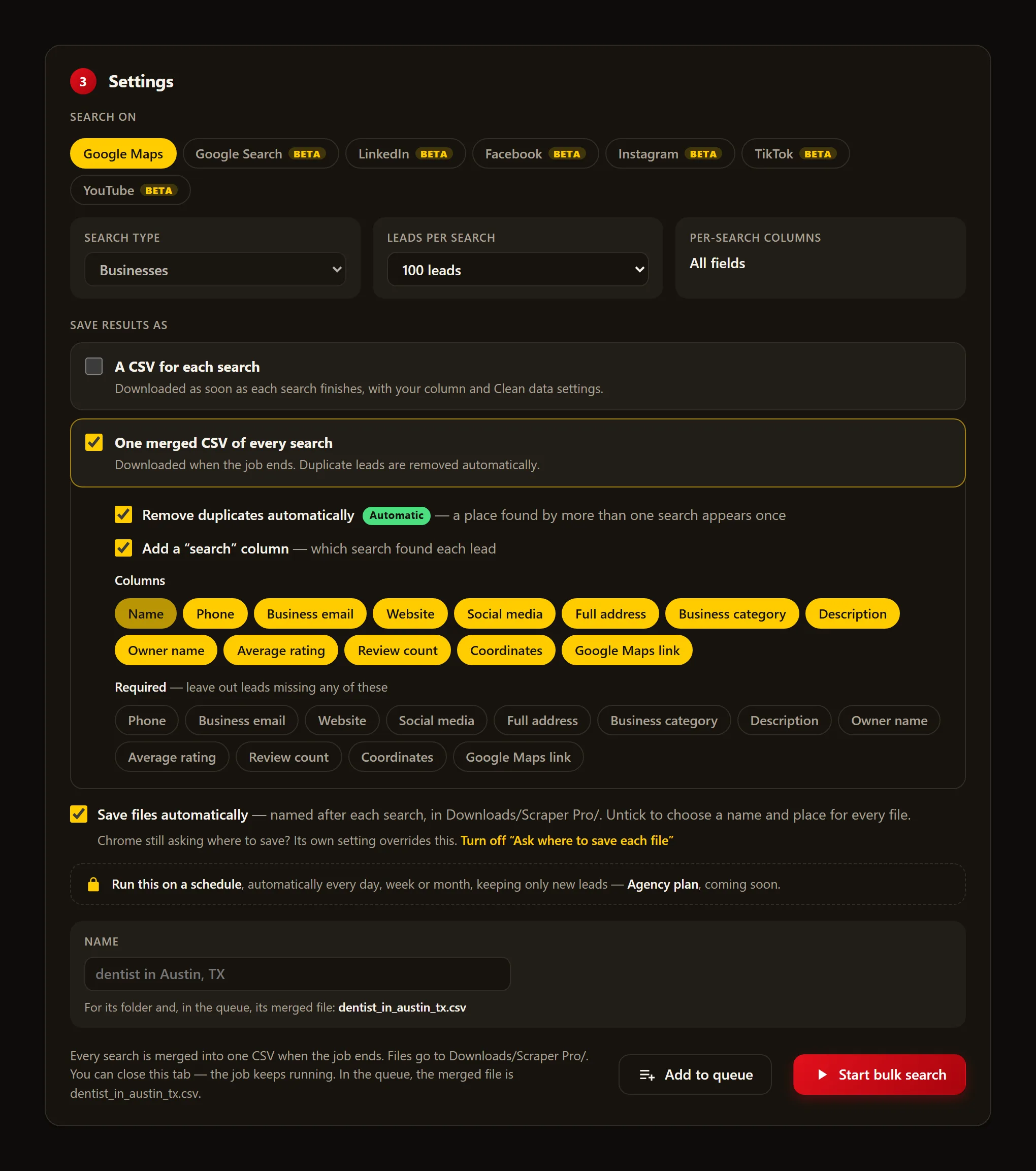
- 1Search onThe source. Google Maps runs in the background; the others in a Scraper Pro window.
- 2Leads per search100, 500, 1,000, 2,500, 5,000 or all available.
- 3A CSV for each searchSaved as soon as each search finishes, with your CSV columns and Required rules.
- 4One merged CSVEvery search in one file, saved when the job ends.
- 5Remove duplicatesA business found by more than one search appears once.
- 6ColumnsWhich columns the merged file has.
- 7RequiredLeave out leads missing any of these, e.g. Business email.
- 8Save files automaticallyInto Downloads/Scraper Pro/, named after each search. Untick to choose every file's name.
- 9NameFor the folder and, in the queue, the merged file's name.
- 10Add to queueLines this batch up; nothing runs until you click Start queue.
- 11Start bulk searchRuns this list now.
Guide 3 of 8
Follow a bulk search
Once started, the page shows the job's progress. You can close the tab: the job keeps running in the extension while Chrome is open.
- 1
Watch it run
The title shows the search being extracted; the bar and the numbers show searches done, leads saved, failed or empty searches and time elapsed.
- 2
Skip, pause or cancel
Skip search keeps what the current search found and moves on. Pause stops after the current page; Resume carries on. Cancel stops the job and keeps every file saved so far.
- 3
Get the merged file
The merged CSV is saved when the job ends. Download it again at any time from the Merged CSV box.
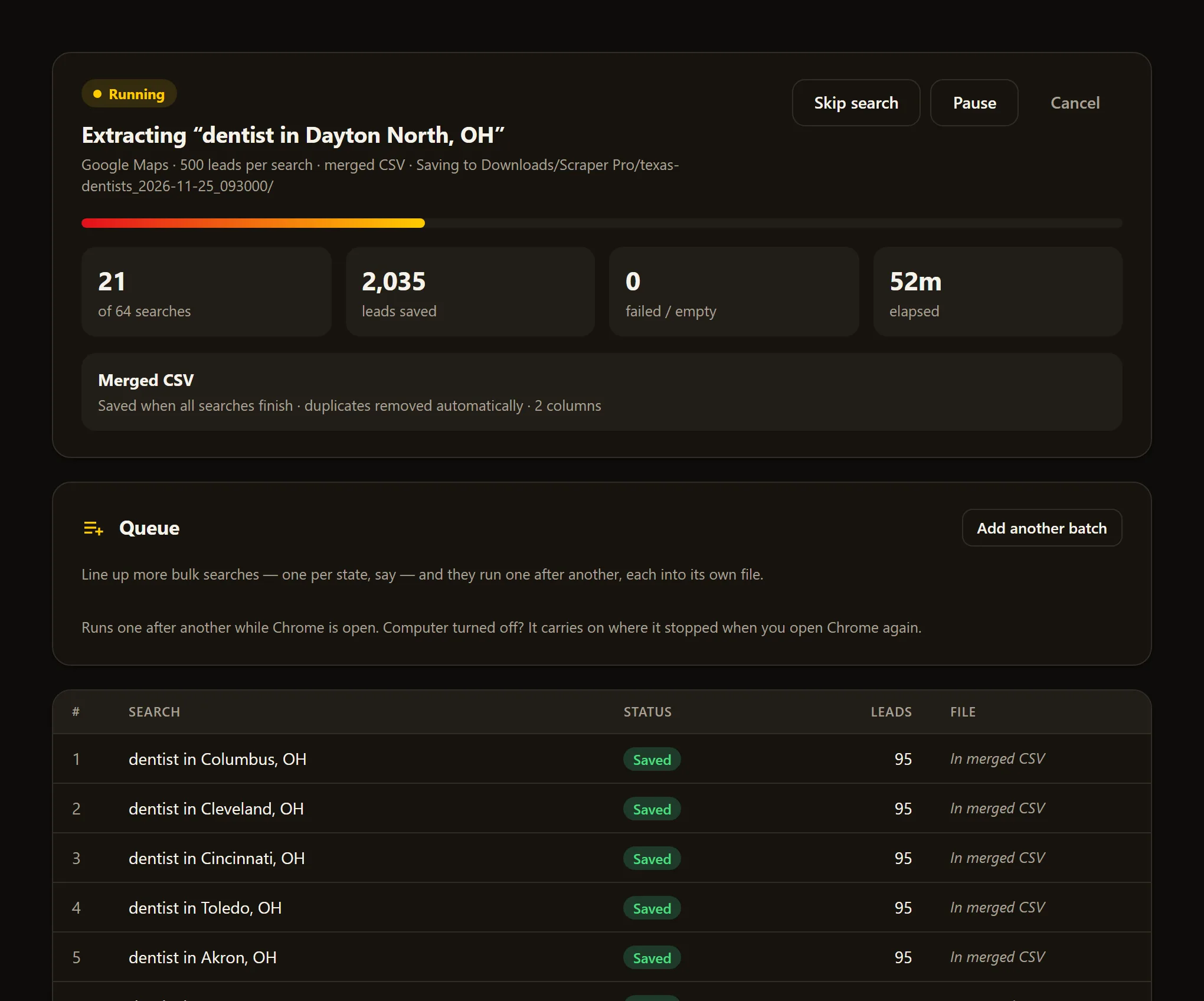
- 1Skip searchMoves to the next search, keeping what this one found.
- 2PauseStops after the current page; Resume continues from the same search.
- 3CancelEnds the job. Files already saved stay in Downloads.
- 4ProgressSearches finished out of all of them.
- 5NumbersSearches done, leads saved, failed or empty searches, time elapsed.
- 6Merged CSVSaved when all searches finish, with duplicates removed.
- 7Each searchIts status (Saved, Extracting, Waiting, Failed), lead count and file.
Tip: If Chrome closes in the middle, the job continues from the search it was on when Chrome opens again. If Google limits requests, it waits 5 minutes and resumes by itself.
Guide 4 of 8
Queue batches, one per state or niche
The queue runs batches one after another, each with its own searches, settings and file. Add them all first; nothing runs until you click Start queue.
- 1
Add each batch
Type or upload one batch's searches, name it (Alabama), and click Add another batch or Add to queue. The form clears for the next batch; your settings stay.
- 2
Check the order
Move a waiting batch earlier or later with ↑ ↓, open it with Edit to change its searches, name or settings, or Remove it.
- 3
Start the queue
Click Start queue. Each batch saves into Downloads/Scraper Pro/Queue/<name>_<date>/, with one merged file named after it (alabama.csv).
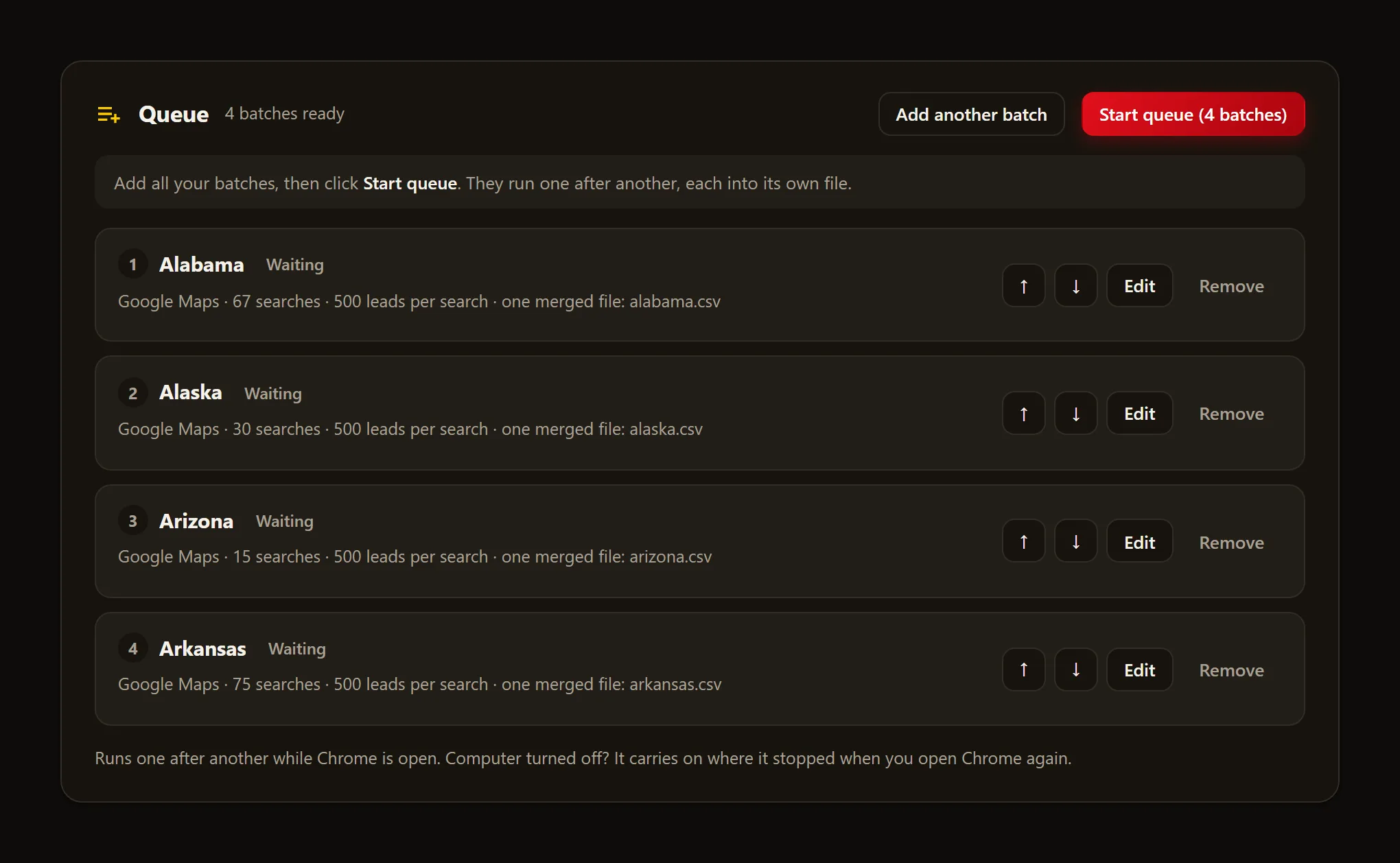
- 1Start queueRuns every waiting batch, one after another. Becomes Pause queue while it runs.
- 2Add another batchPuts what's in the form into the queue and clears it for the next batch.
- 3The batchIts source, searches, leads per search and the merged file it will save (alabama.csv).
- 4↑ ↓Run this batch earlier or later.
- 5EditChange a waiting batch: searches, name, settings. It keeps its place.
- 6RemoveTakes a waiting batch out of the queue.
Guide 5 of 8
Follow the queue
While the queue runs, the running batch shows its live progress, even while you're adding more batches above.
- 1
See which batch is running
The header says Running batch 2 of 4; finished batches show their lead count and file.
- 2
Follow the batch
What it's extracting now, a progress bar, searches done, leads, failed or empty searches and time; Show all searches lists every search with its status.
- 3
Control it
Skip search or Pause the running batch, Cancel it (the queue moves on), or Pause queue to stop after the current batch.
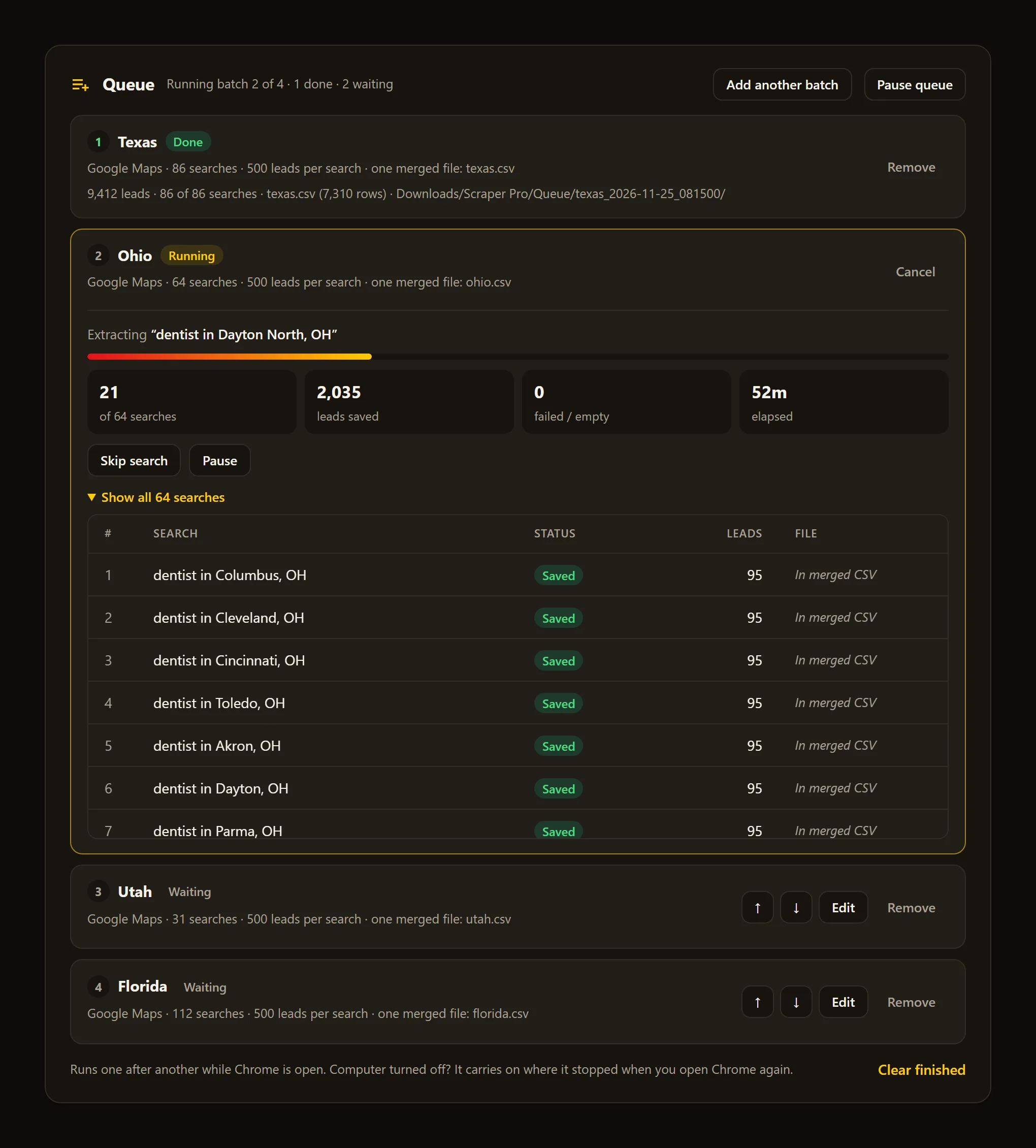
- 1Which batchRunning batch 2 of 4 · 1 done · 2 waiting.
- 2Pause queueThe running batch finishes; the rest wait until you resume.
- 3Finished batchIts leads, searches and merged file, with the folder in Downloads.
- 4Extracting nowThe search the running batch is on.
- 5Batch numbersSearches done, leads saved, failed or empty, time elapsed.
- 6Skip search · PauseControl the running batch without leaving the queue.
- 7Show all searchesEvery search in the batch with its status and lead count.
Tip: Computer turned off? The queue carries on where it stopped when you open Chrome again: the running batch resumes from its search, then the next batch starts.
Guide 6 of 8
Run 1,000 searches from the dashboard
Leads → Search leads at app.scraperpro.pro runs Google Maps searches through the extension in your browser and saves the leads, live, in a lead group.
- 1
Add the searches
Type them or upload Excel or CSV; on Business up to 1,000 per run.
- 2
Run with the extension
The fastest way, in your own browser; you can close the tab. Without the extension, runs go through Scraper Pro's servers from the tab (up to 20 searches and 2,000 leads a month).
- 3
Set the options
Leads per search, the lead group's name, emails and social profiles from websites, and only businesses with a website or phone.
- 4
Start searches
The lead group opens and fills as leads are found.
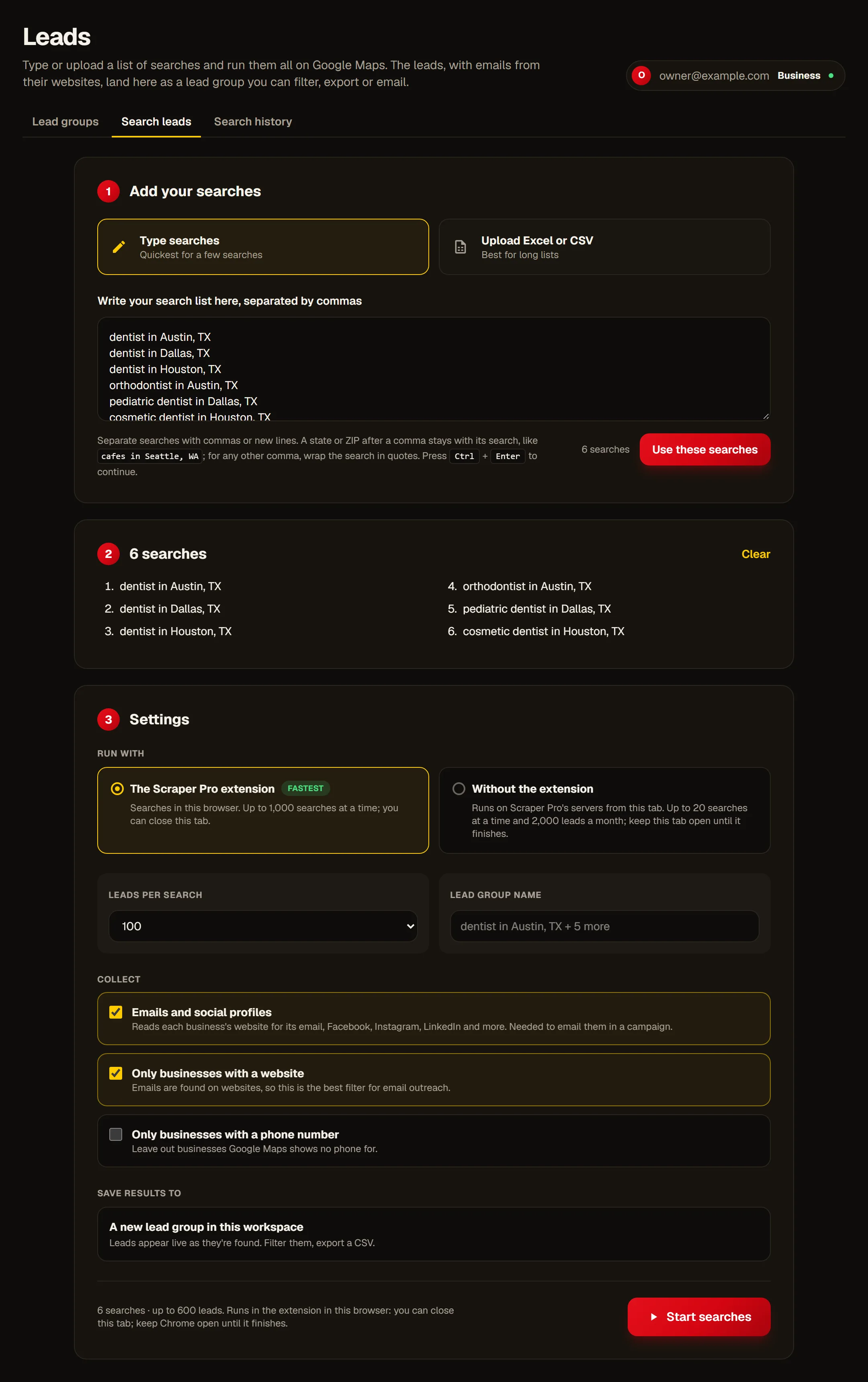
- 1Leads tabsLead groups, Search leads and Search history.
- 2The Scraper Pro extensionRuns in your browser; up to 1,000 searches on Business.
- 3Without the extensionOn our servers from this tab: up to 20 searches and 2,000 leads a month.
- 4Leads per searchFrom 50 to 2,000.
- 5Emails and social profilesReads each business's website for its email and profiles.
- 6Start searchesOpens the new lead group.
Guide 7 of 8
Work with a lead group
Every dashboard search, and every Sync from the extension, becomes a lead group under Leads → Lead groups.
- 1
Check the counts
Leads, and how many have an email, a phone and a website.
- 2
Filter
Search names, categories, addresses or emails; tick Has email, Has phone or Has website; set a minimum rating or reviews.
- 3
Export
Export CSV downloads the leads, or only the filtered ones.
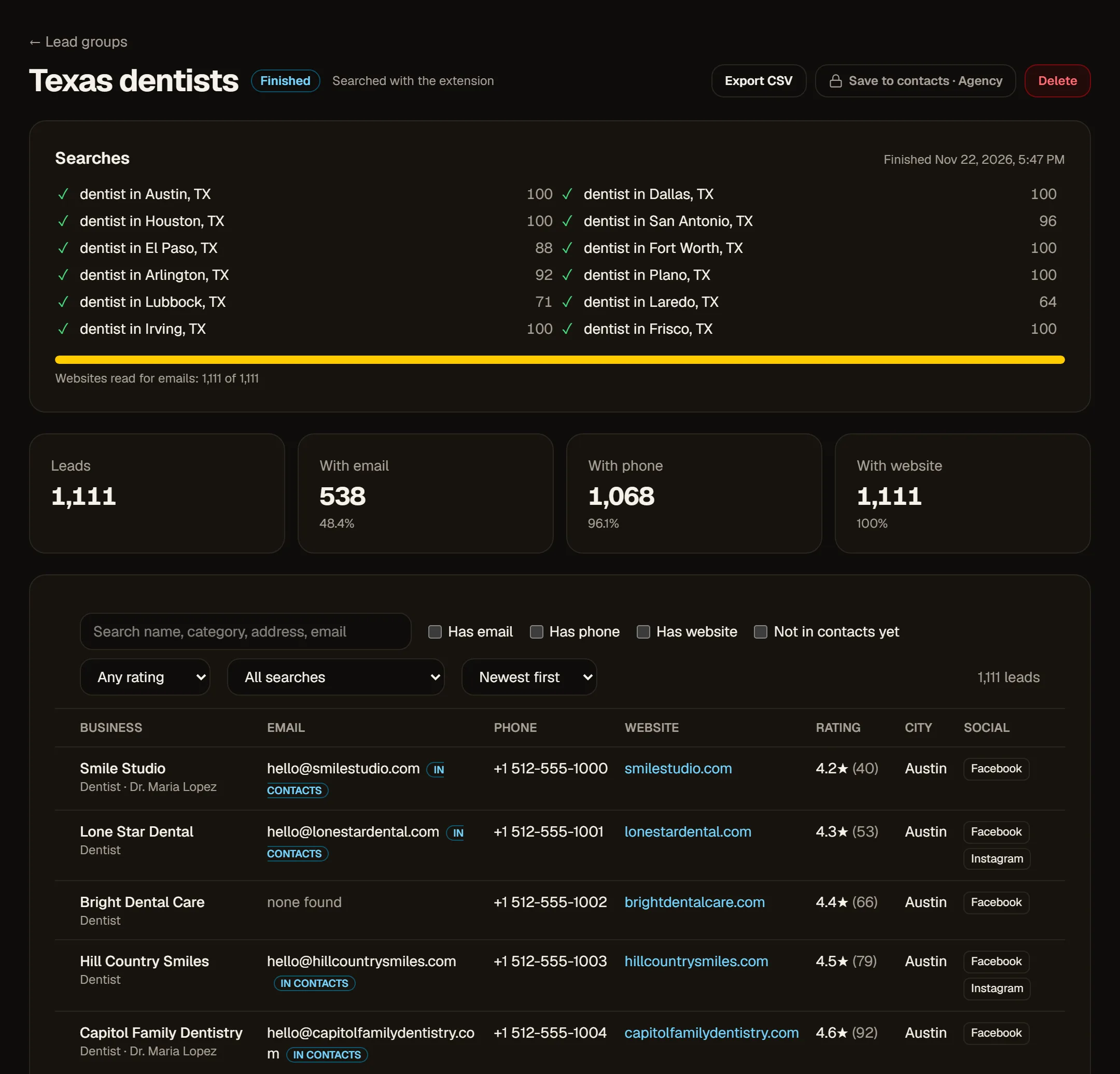
- 1Export CSVAll leads, or the filtered ones.
- 2SearchesEach search and how many leads it kept.
- 3CountsWith email, phone and website, and the share of each.
- 4FiltersHas email, Has phone, Has website, minimum rating and reviews.
Tip: Use Sync to app.scraperpro.pro under the Google Maps panel or on a finished bulk search to send what the extension collected to a lead group.
Guide 8 of 8
See every search you've run
Leads → Search history lists your newest 1,000 searches, in the extension on every source and in the dashboard.
- 1
Find a search
Search by text, filter by source, status, time period, or bulk searches only.
- 2
Read the details
Each search's type, what ran it (the extension version, or the dashboard without it), lead count, status and why it stopped or failed.
- 3
Export
Export CSV downloads the list, or the filtered part of it.
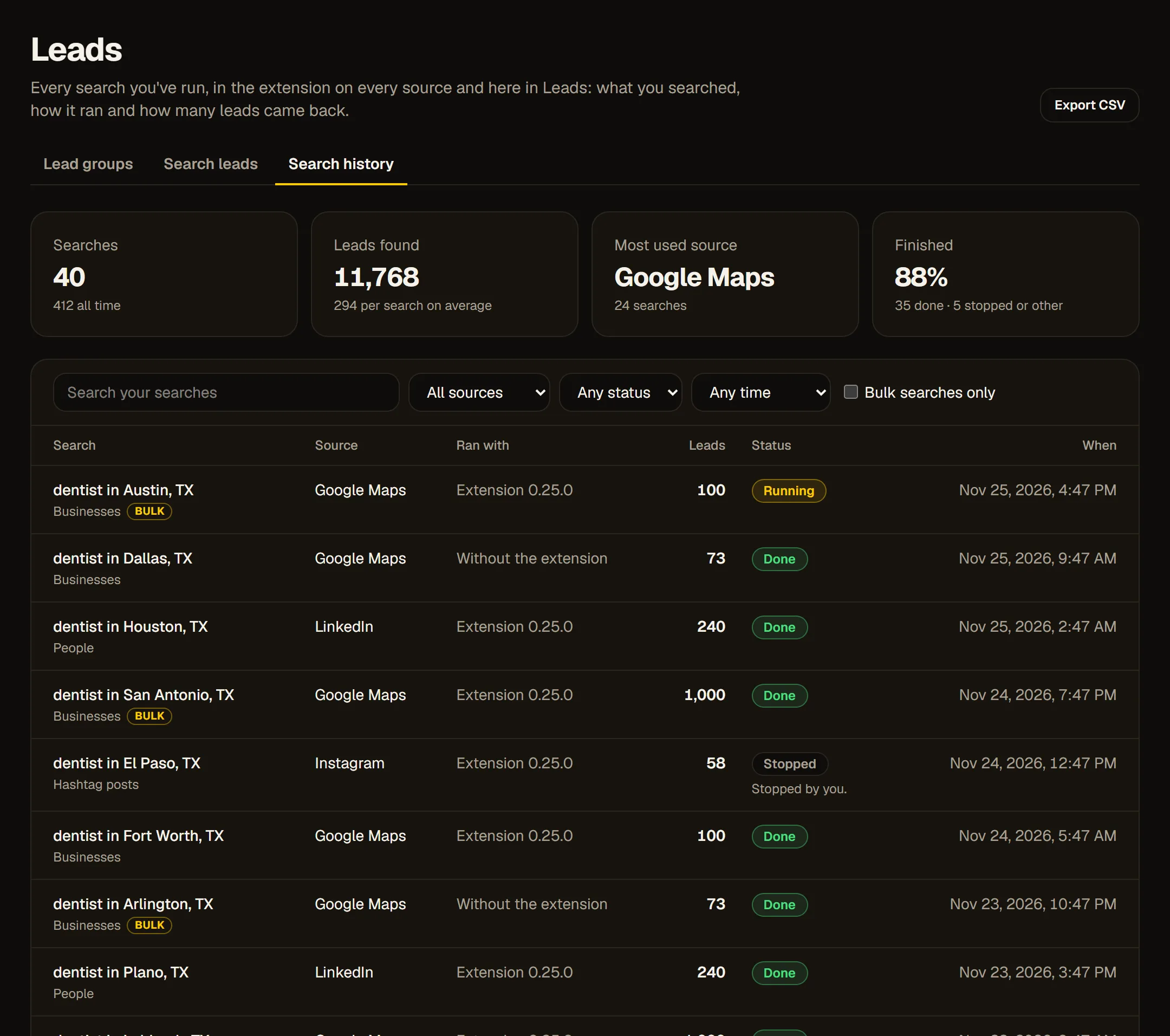
- 1TotalsSearches, leads found, most used source and the share that finished.
- 2SearchFind a search by its words.
- 3SourceGoogle Maps, LinkedIn, Instagram and the rest.
- 4StatusDone, stopped, limit reached or error.
- 5Bulk searches onlyJust the searches that ran in bulk.
- 6Ran withThe extension version, or without the extension.
- 7Export CSVThe list as a spreadsheet.
Business plan FAQ
How much does Scraper Pro Business cost?
$50 a month at the launch price, then $149. Yearly billing charges ten months for a year. There's a 3-day money-back guarantee and you can cancel anytime.
How many searches can a bulk job run?
Up to 1,000 Google Maps searches per file, 200 Google Search searches, and 100 searches on each of LinkedIn, Facebook, Instagram, TikTok and YouTube. For more, put several batches in the queue.
Do I have to keep the page open?
No. Bulk search runs in the extension while Chrome is open: you can close the Bulk page. Social sources run in a Scraper Pro window that must stay open (behind other windows is fine, not minimized).
What happens if my computer turns off?
When you open Chrome again, the job continues from the search it was on, and a queue moves on to its next batch afterwards.
Can I get one file per state or client?
Yes: put one batch per state or client in the queue with One merged CSV ticked. Each batch saves into its own folder with a file named after it, like texas.csv.
Does Business include email campaigns?
No. Email outreach (Contacts, Campaigns, Inbox, Templates, Email accounts) and scheduled bulk searches are part of the Agency plan.
What's in Business that isn't in Pro?
Bulk search on seven sources from Excel, CSV or a typed list, merged CSVs with duplicates removed, the queue, skip, pause, resume and auto-recovery, and 1,000-search runs in the dashboard.