
Who it's for
- Freelancers and consultants building lead lists for clients
- Sales reps prospecting one city or niche at a time
- Anyone who has hit the Free plan's 2,000 leads a month
Key facts
- Price
- $10/month launch price (regular $29); yearly billing charges 10 months for 12
- Google Maps leads
- Unlimited
- Google Search, LinkedIn, Facebook, Instagram, TikTok, YouTube
- Unlimited results
- Lead target per search
- Unlimited (Free stops at 2,000)
- Whole-city search
- Area by area, automatically
- CSV columns
- Choose them; mark any column Required
- Dashboard lead searches
- Up to 20 searches per run
- Guarantee
- 3-day money-back guarantee; cancel anytime
Everything in Pro
Unlimited Google Maps leads
No monthly allowance and no per-lead fees. Search as often and as big as you like; each lead has the name, phone, website, address, category, rating, reviews and map link.
Unlimited social and Google Search results
Export people, companies, pages, groups, posts, videos and channels from LinkedIn, Facebook, Instagram, TikTok and YouTube, and Google's web results, with no monthly cap.
No cap on the lead target
Set a search to 1,000, 5,000 or every business Google Maps has for it. Free searches stop at the month's allowance.
Area-by-area search across whole cities
Google Maps lists only a limited number of places for one search. Pro then searches the area in rings around the first results, so a search like “dentist in Houston, TX” covers the whole city.
Choose your CSV columns
Keep only the columns you use, or the contact details alone. Mark a column Required and rows without it are left out of the download.
Business emails and social profiles
Scraper Pro reads each business's website for its email and its Facebook, Instagram, LinkedIn, X, YouTube and TikTok profiles, alongside the search. On every plan.
Works in the background
Start a search and keep working: the panel collects leads while you use other tabs, and you can download what's found at any time.
Your dashboard
app.scraperpro.pro shows your plan, this month's leads per source, a 12-month chart and your search history, and runs up to 20 lead searches at once.
Guide 1 of 5
Upgrade to Pro and check your plan
Pro works wherever you sign in with the same Google account: the extension, the website and the dashboard.
- 1
Install the extension and sign in
Add Scraper Pro to Chrome from the Chrome Web Store, open its popup and click Sign in with Google.
- 2
Buy Pro
On the pricing section of scraperpro.pro, or in the dashboard's Plan & billing page, choose Pro, monthly or yearly, and pay through the secure checkout.
- 3
See it unlocked
Your plan shows PRO in the extension and in the dashboard's Overview. Every monthly limit is gone straight away.
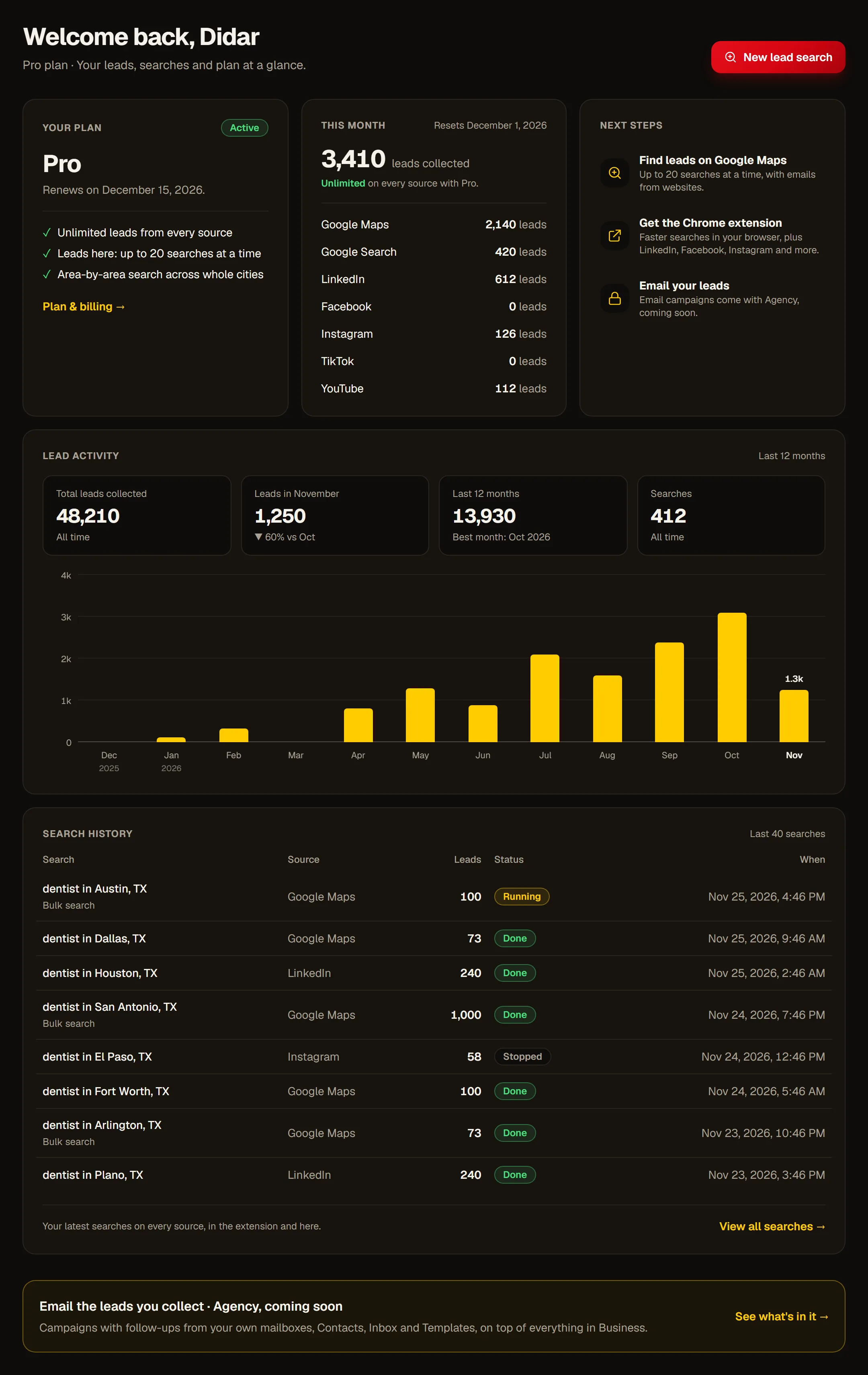
- 1Your planPro, when it renews, and a link to Plan & billing to switch to yearly, upgrade or manage your card and invoices.
- 2This monthLeads collected per source this month. On Pro every source says Unlimited.
- 3New lead searchRun up to 20 Google Maps searches at once from the dashboard (see below).
- 4Lead activityYour total leads, this month against last month, and a month-by-month chart of the last 12 months.
Guide 2 of 5
Collect a whole city from Google Maps
The Scraper Pro panel appears on Google Maps. On Pro, one search can cover a whole city and collect as many leads as Google Maps has.
- 1
Search on Google Maps
Open google.com/maps and search as usual, for example “coffee shops in Seattle, WA”. The Scraper Pro panel shows the search.
- 2
Set the lead target
Choose how many leads you want: 100, 500, 1,000, 2,500, 5,000 or all available. On Pro there's no cap.
- 3
Click Extract
The panel collects leads area by area: when the first results run out, it searches the next ring around them. Progress and the area it's on are shown live.
- 4
Download the CSV
Click CSV at any point, during the search or after. The file opens in Excel or Google Sheets.
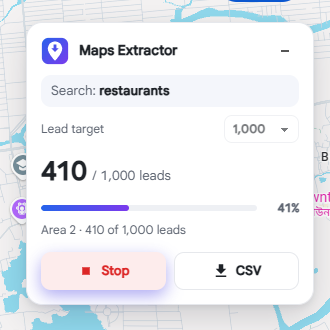
- 1Your searchWhat you searched on Google Maps. Change the search on the map and the panel follows.
- 2Lead targetHow many leads to collect. Pro has no cap: up to every business Google Maps has for the search.
- 3Area by areaWhich area of the city it's searching now, and the count so far. Pro searches ring after ring until the city is covered.
- 4StopEnds the search and keeps everything found so far.
- 5CSVDownloads the leads found so far, with your columns, at any moment.
- 6Bulk searchMany searches at once is part of Business.
Tip: Emails and social profiles come from each business's website while the search runs. The first time, Chrome asks you to allow Scraper Pro to read websites; click Allow once.
Guide 3 of 5
Choose your CSV columns, and what every row must have
Open the extension's popup, then Settings → CSV columns. Pro lets you choose the columns of every download and mark the ones each row must have.
- 1
Open CSV columns
In the popup, open Settings and choose CSV columns · Google Maps (each social network has its own).
- 2
Tick the columns you need
Contact details (phone, business email, website, social media, address) and place details (category, description, owner, rating, reviews, coordinates, map link). Name is always included.
- 3
Mark columns Required
Click Required on a column and rows without a value in it are left out of the CSV, for example only businesses with an email. Your results in the extension stay complete.
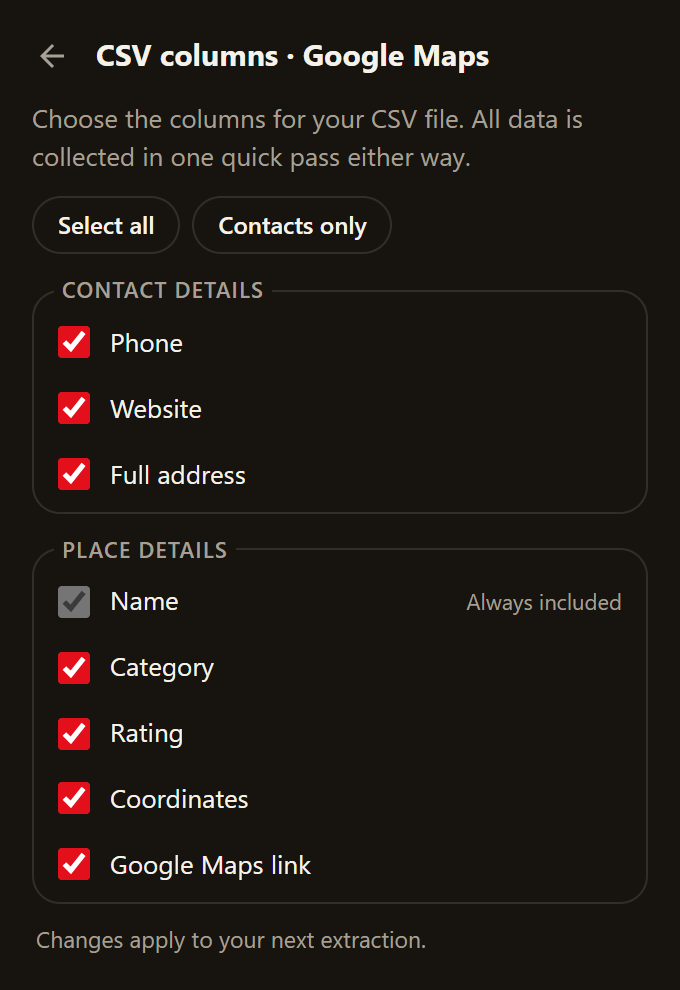
- 1Select allEvery column, in one click.
- 2Contacts onlyJust the contact details: phone, email, website, social media and address.
- 3Tick a columnIn or out of the CSV. The change applies to your next extraction.
- 4RequiredOnly rows with a value here are downloaded, e.g. Business email to get only businesses with an email.
- 5Always includedThe business name is in every file.
Guide 5 of 5
Run up to 20 searches at once in the dashboard
Leads → Search leads at app.scraperpro.pro runs a list of Google Maps searches and saves the leads in a lead group. On Pro, up to 20 searches per run.
- 1
Add your searches
Type them separated by commas or new lines, or upload an Excel or CSV file with one search per row. Click Use these searches.
- 2
Choose how it runs
With the Scraper Pro extension (fastest, in your browser; you can close the tab) or without it (on Scraper Pro's servers from this tab, up to 2,000 leads a month).
- 3
Set leads per search and what to collect
50 to 2,000 leads per search, emails and social profiles from websites, and only businesses with a website or a phone.
- 4
Start
The leads appear live in a new lead group. Filter them, and export a CSV.
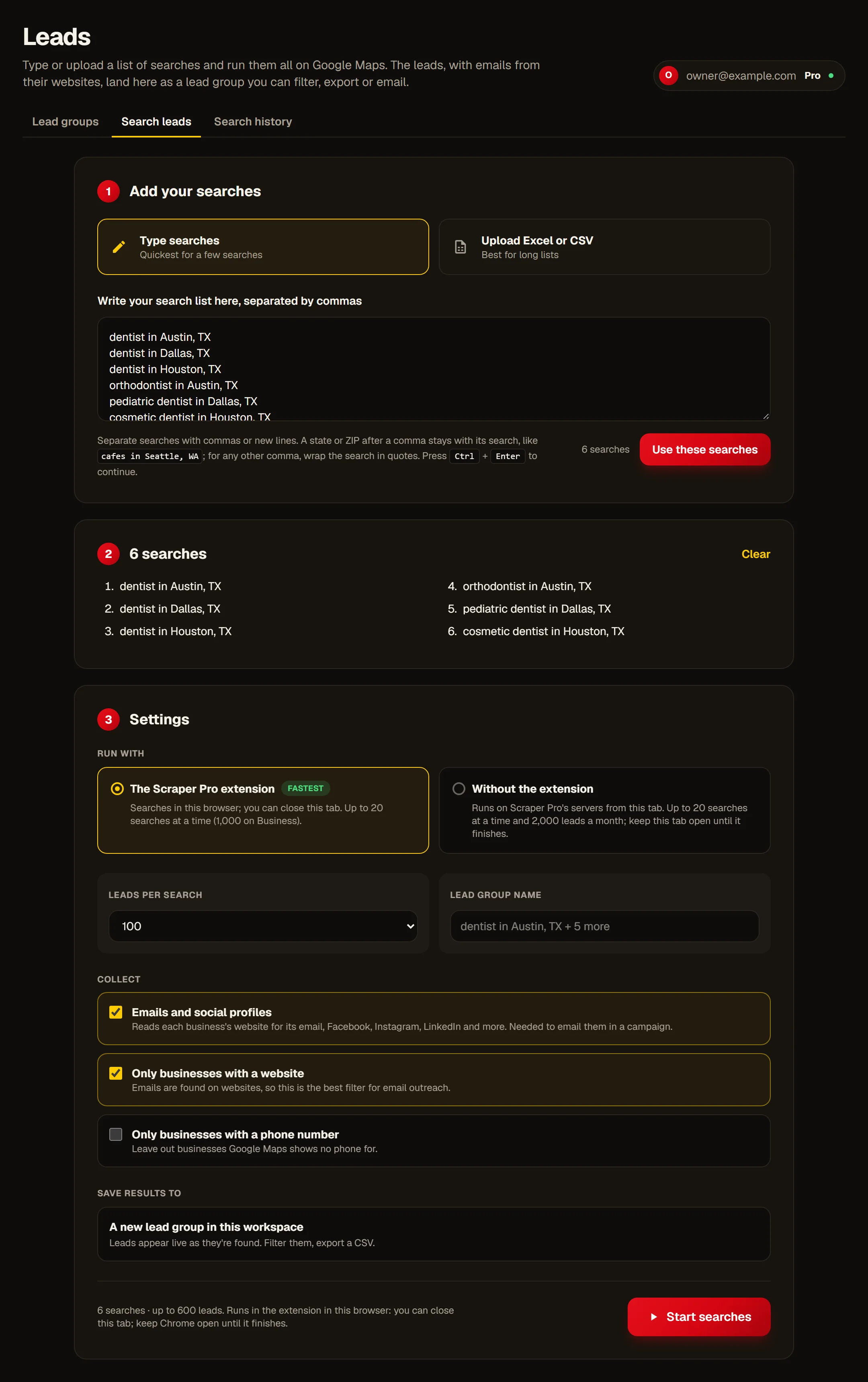
- 1Your searchesTyped or pasted, one per line or separated by commas. Up to 20 on Pro.
- 2Run withThe extension in your browser, or our servers without it.
- 3Leads per searchHow many leads each search keeps, from 50 to 2,000.
- 4Start searchesCreates the lead group and starts. Business runs up to 1,000 searches at a time.
Pro plan FAQ
How much does the Pro plan cost?
$10 a month at the launch price, then $29. Yearly billing charges ten months for a year (two months free). There's a 3-day money-back guarantee, and you can cancel anytime from Plan & billing.
Is anything limited on Pro?
No monthly limits: Google Maps leads, Google Search results and LinkedIn, Facebook, Instagram, TikTok and YouTube results are all unlimited, with no per-lead fees. Many searches at once (bulk search) is part of Business; the dashboard runs up to 20 searches at a time on Pro.
What's the difference between Pro and Business?
Pro is for one search at a time. Business adds bulk search on all seven sources (up to 1,000 Google Maps searches from one Excel or CSV file), merged files with duplicates removed, a queue of batches, and 1,000-search runs in the dashboard.
Does Pro find business emails?
Yes. Emails and social profiles are read from each business's website during the search, on every plan. Mark Business email Required in CSV columns to download only businesses with an email.
Can I use Pro on more than one computer?
Yes. Your plan belongs to your Google account: sign in to the extension with the same account on any computer, and in the dashboard.
Can I upgrade from Pro to Business later?
Yes, from Plan & billing in the dashboard or the pricing section. You're charged the prorated difference and Business unlocks straight away.
Guide 4 of 5
Export LinkedIn, Facebook, Instagram, TikTok and YouTube results
Search on a social network as usual and a Scraper Pro panel appears on the page. On Pro, there's no monthly limit on any network.
Search on the network
For example LinkedIn people “product designer”, Instagram hashtag posts or YouTube channels. The panel shows the search type.
Choose how far to go
Pick how many result pages (LinkedIn, Google Search) or how many results to collect. The panel pages or scrolls for you, with pauses.
Extract, then download
Click Extract and watch the count. Click CSV at any time. The extension reads only what the site shows you.